
MasBrowser
Customer supportLoading messages…
Loading messages…
You are viewing a previous conversation.
Enter to send · Shift + Enter for a new line
Loading messages…
You are viewing a previous conversation.
Enter to send · Shift + Enter for a new line
Many people running multiple accounts buy a fingerprint browser and a proxy IP, only to get stuck at "how do I connect the two": the proxy format is confusing, filling it in fails, or the test passes but logins still get banned...
A fingerprint browser and a proxy IP are not "plug-and-play"; they need correct configuration. This guide follows the real interface step by step: how to read proxy information, how to fill it in MasBrowser, how to verify after configuring, and how to fix the most common errors.
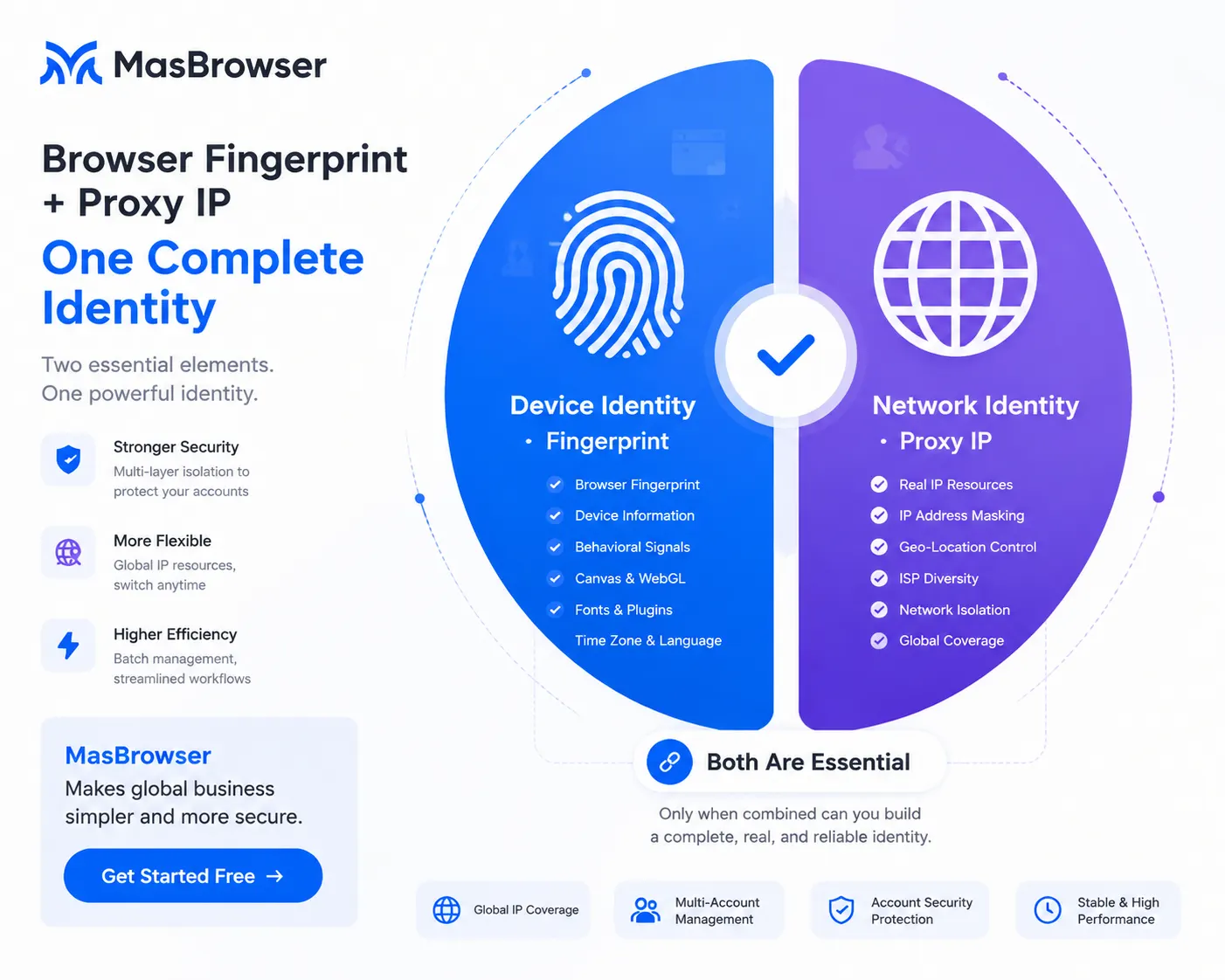
In one sentence: the fingerprint manages the "device identity", the proxy manages the "network identity" — for an account to be safe, you need both, and they must match.
The two must match: a US IP with a US fingerprint (timezone, language) reads as "a normal US user"; if the IP and fingerprint regions clash, you become more visible instead (the logic of timezone/language consistency with IP is detailed in Timezone and Language Fingerprint). How to choose a proxy IP (residential vs datacenter) also has its own article; here we go straight to configuration.
The information your proxy provider gives you is usually a few fragments of text. First understand what each part means:
103.xx.xx.xx:8080 — the part before the colon is the IP address, the part after is the port; you need both to connect to the server.Once you understand these three, configuration is no longer guesswork. When buying a proxy, ask the provider for a "format example" — filling it in against that is the most reliable way.
Using MasBrowser as an example (proxy settings are under "Basic Info" when creating an environment; existing environments can also be changed in settings):
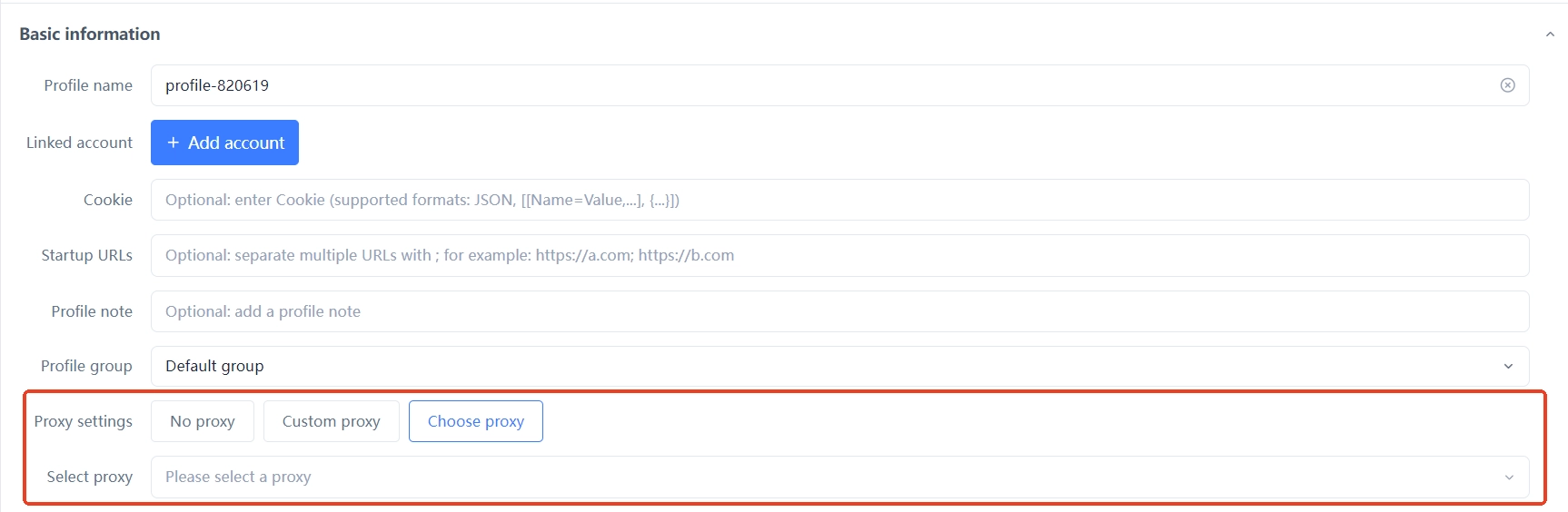
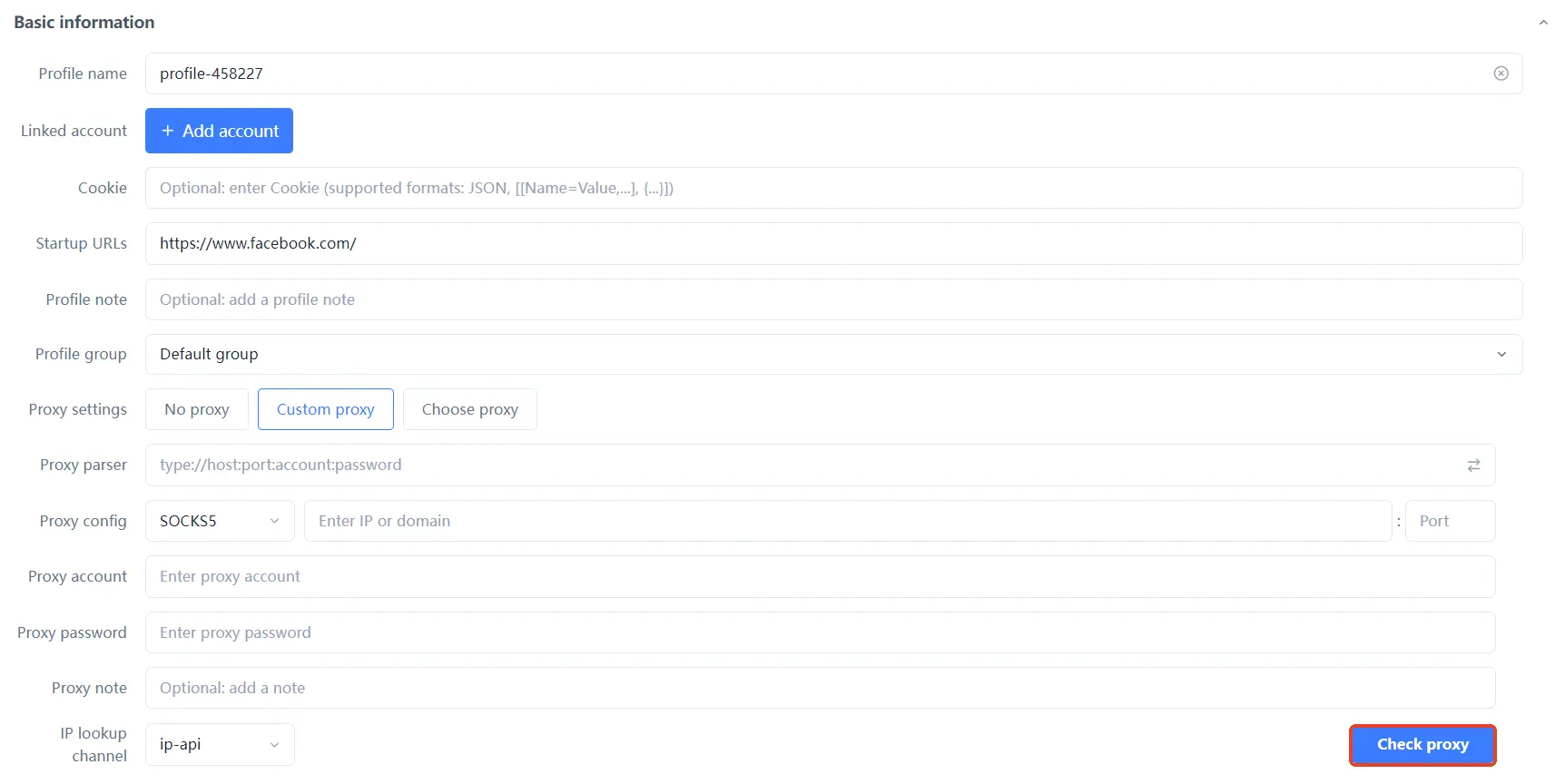
The most common filling mistakes: swapping the username and password, mistyping the port, or entering a username/password when using whitelist authentication — checking each field against the provider's format example avoids 90% of filling errors.
How to choose among the three proxy modes:
| Mode | Best for | Notes |
|---|---|---|
| No proxy | Test environments only, no account login | Environment uses your real IP; multiple accounts sharing it will be linked |
| Custom proxy | Fill in a single IP manually, configure one by one | Flexible, fits few accounts needing fine-grained setup |
| Select proxy | Pick from saved proxy sources | High efficiency for batch setup, recommended with many accounts |
Different businesses emphasize different aspects of configuration:
The underlying logic of choosing an IP (residential vs datacenter) was covered earlier; we won't repeat it here.
Configuration is not the same as done. After launching the environment, spend a minute verifying three things:
When all three pass, the proxy and fingerprint are truly "matched" — to the platform, you are just "a normal user browsing in the target region".
Don't panic when you hit an error; check against the list:
Suggested troubleshooting order: verify the filling first → then test the proxy itself → finally check the environment binding — step by step, most problems can be located.
Configuration done is not a one-time fix; keep an eye on three things daily: first, dynamic proxies may drop — check the proxy status before logging in; second, renew the proxy before it expires so the environment is never "naked"; third, when an account behaves abnormally, check the proxy status before other dimensions — many "mysterious bans" are actually failed proxies.
Four things: ① the proxy test passes and the exit IP is the target region; ② timezone, language, and geolocation match the IP region (configured based on IP); ③ WebRTC shows "disabled" and does not leak the real IP; ④ fingerprint parameters (UA, Canvas, etc.) are consistent with the system and browser version. With all four correct, the environment is "production-ready".
The fingerprint solves the "device identity", but all accounts share your real IP — multiple accounts on one exit IP means association still holds. A proxy is a required companion, not an option.
Not recommended. Multiple environments sharing one proxy IP means multiple accounts sharing a network identity — the platform can see the association. Bind each environment to its own IP to stay safe.
Passing the test only means "connectivity", not "safety". You also need to confirm: the IP type fits (residential vs datacenter), the IP has no bad history, and the fingerprint matches the IP region. Only when all of these are right can you talk about safety.
No. Just change the proxy in the environment settings, re-test, confirm the timezone and language follow the new IP region, then launch. But if the account is already running stably, avoid changing IPs frequently.
A fingerprint browser and a proxy IP are a "device identity + network identity" combination. Configuration is not hard; the hard part is "matching": fill the IP format correctly, pass the test, make the fingerprint follow the IP, and keep WebRTC from leaking — when all four are done, the environment is truly set up.
Once you configure the first environment well, the rest is repetitive copy-paste. The free plan already includes 2 environment slots; download MasBrowser, set up the first "fingerprint + proxy" environment following this guide, and only then replicate it to other accounts.