When multi-account operations reach a certain team size, an old problem surfaces: accounts have multiplied, people have multiplied — how exactly do you manage environments and people? The usual mess looks like this: login passwords for a dozen store accounts sitting in one Excel sheet being passed around; the day an employee resigns, you discover they still hold two store environments unaccounted for; two people logging into the same account on different computers, kicking each other off while the platform throws up "abnormal login" alerts.
These problems all trace back to one root cause: "environments" are not managed separately from "people". This article covers the team collaboration approach in fingerprint browsers — why you should manage with a tool rather than rely on discipline, how environment sharing and transfer work, and which of the common division-of-labor models to choose.
Why Does "Sharing Account Passwords" Fall Apart?
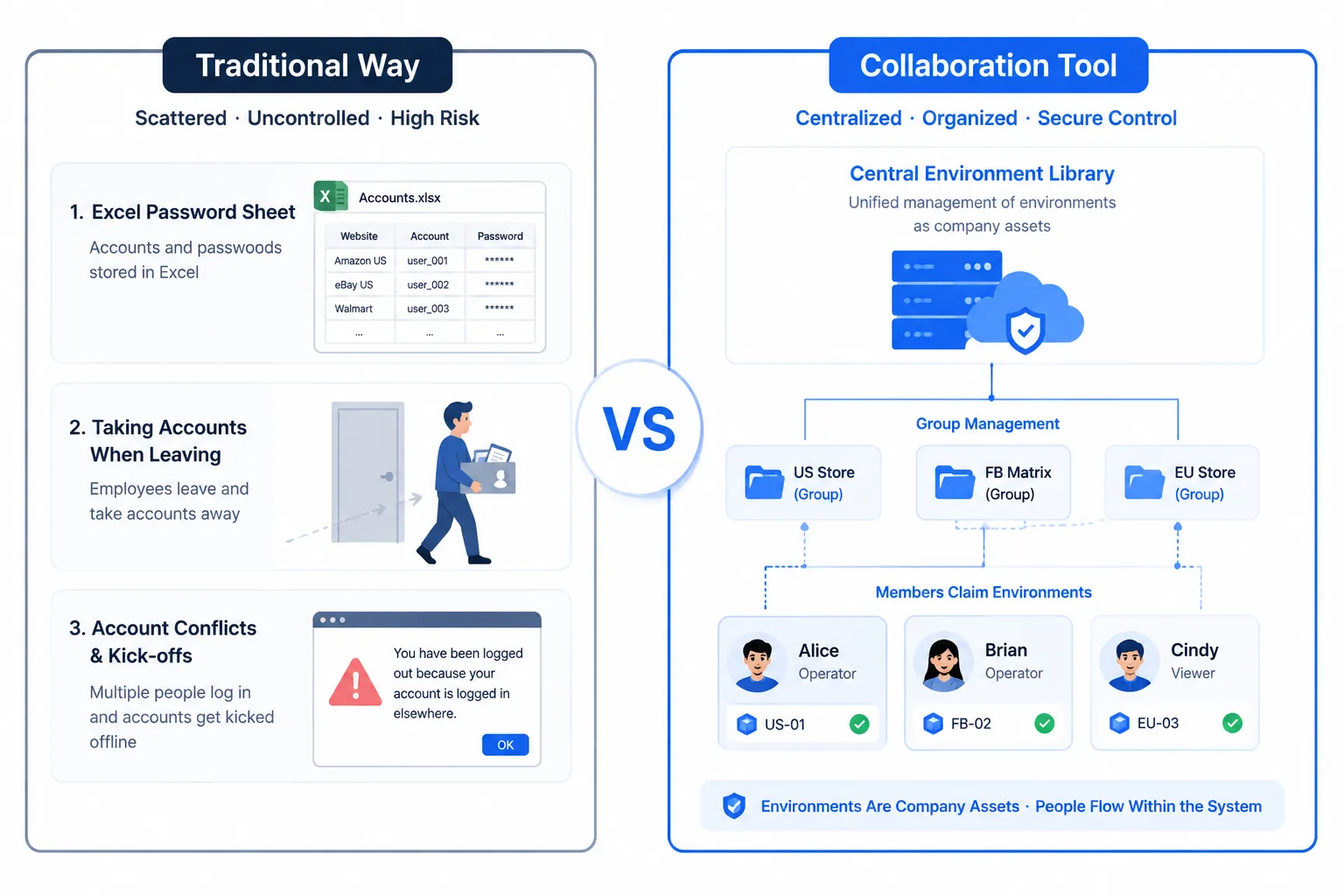
First, lay out the problems with the traditional approach (the value of environment isolation is fully covered in What Is a Fingerprint Browser; here we focus on the "people" layer):
- Security disaster: once a password sheet circulates in a group chat, accounts are open to everyone — employees walking away with accounts on their exit is the most common asset loss in cross-border e-commerce, with no evidence trail to even pursue.
- Efficiency black hole: new hires need passwords sent account by account and login flows taught one by one; when a senior employee takes leave, nobody can take over their accounts — environment knowledge lives in personal memory, not in systems.
- Risk-control collateral damage: two people log into the same account from their own computers; device fingerprints and IPs all change, and the platform flags "abnormal login" or even bans for association — sharing a password ≠ sharing an environment; multiple people logging in separately is the most dangerous practice.
- Unclear accountability: when something goes wrong (who changed the payout info? who sent the wrong content?), there's no trace to check — no authorization boundary means no responsibility boundary.
In one sentence: managing a multi-account team with Excel and good intentions inevitably loses control at ten-plus accounts — it's not an execution problem; it's a methods problem.
The Fingerprint Browser's Answer: Manage Environments as Team Assets
The fingerprint browser's solution is simple: turn environments into "team assets" instead of "personal tools" — people come and go, but environments stay with the company:
- Member management: admins invite team members into the same workspace, and members log into the client with their own accounts — no platform passwords needed at all to use assigned environments. Joining and leaving are purely administrative actions.
- Environment sharing and transfer: environments that need collaboration can be shared with specific members (joint maintenance) or transferred entirely to a member (position handover). After transfer, the original holder no longer holds it — handover involves a clear change of ownership, not a verbal "this account is yours now".
- Group management: environments are grouped by business line (e.g., "Amazon US Store", "FB Matrix Group A"), and members get environments by group — just look at groups to see who handles what, with permission boundaries obvious at a glance.
The essence of this mechanism: environment login states, fingerprints, and proxy configurations are consolidated in the company's unified management system, and people flow through the system — accounts don't walk out the door with employees, and newcomers don't need to rebuild login states from scratch.
How to Design Team Division of Labor? Three Proven Models
A tool is only the foundation; how the team divides labor is the real solution design. Three validated models:
- Model 1: Division by business line (most common). Each business line gets a group of environments and one owner — "US store sites" as a group, "EU store sites" as a group, "social media matrix" as another. Advantage: clear accountability: each group's success or failure ties to a single person; suits teams where business lines are relatively independent.
- Model 2: Division by function. Operations create content and list products, customer service handles daily replies and after-sales, supervisors watch data and approve — environments of the same business line are handled by different functions. Advantage: professional specialization: everyone works in their strongest link; suits teams with mature processes.
- Model 3: Centralized master account + member execution. All environments are held by the admin, and members only get "execution rights" to run daily operations — suits startups or outsourcing scenarios (outsourced staff finish and leave; environment assets always stay with the company).
Selection advice: small teams (2-5 people) do best with Model 1; process-driven mid-size teams use Model 2; outsourcing or high-turnover teams use Model 3. Whichever model you choose, the principle is one: every environment has exactly one accountable owner at any moment.
The 4 Pitfalls Teams Hit Most Often
- Pitfall 1: handing over account passwords instead of environments on departure. A departing employee sends platform credentials to the new colleague — the newcomer logs in on their own computer, device and IP all change; light consequences mean verification prompts, heavy ones mean association flags. The right way is to transfer the whole environment (with fingerprint config, proxy, login states) — when the newcomer opens it, it's the familiar "device".
- Pitfall 2: multiple people operating the same environment simultaneously. An environment shared with two members gets launched by both at once — they kick each other's sessions off, and stacked behaviors easily look abnormal. Set time slots and usage rules for sharing too, or simply give each environment one owner.
- Pitfall 3: not processing membership when someone leaves. The employee is gone, but their team membership still hangs in the workspace — remove the membership and complete environment transfer on the day of departure; that's the most basic asset-management discipline.
- Pitfall 4: thinking adding people solves everything. Collaboration features solve "who can use it", but "using it well" still depends on norms: which websites each environment may visit, whom to notify when proxies change, whether batch operations need pre-approval — when processes can't keep up, even great tools descend into chaos.
The common thread across four pitfalls: treating the collaboration tool as the whole answer — the tool handles "separating assets from people"; rules handle "orderly usage"; neither works alone.
Setting Up Team Collaboration with MasBrowser
MasBrowser's team capabilities revolve around "member management + environment flow". The setup path (using MasBrowser as an example):
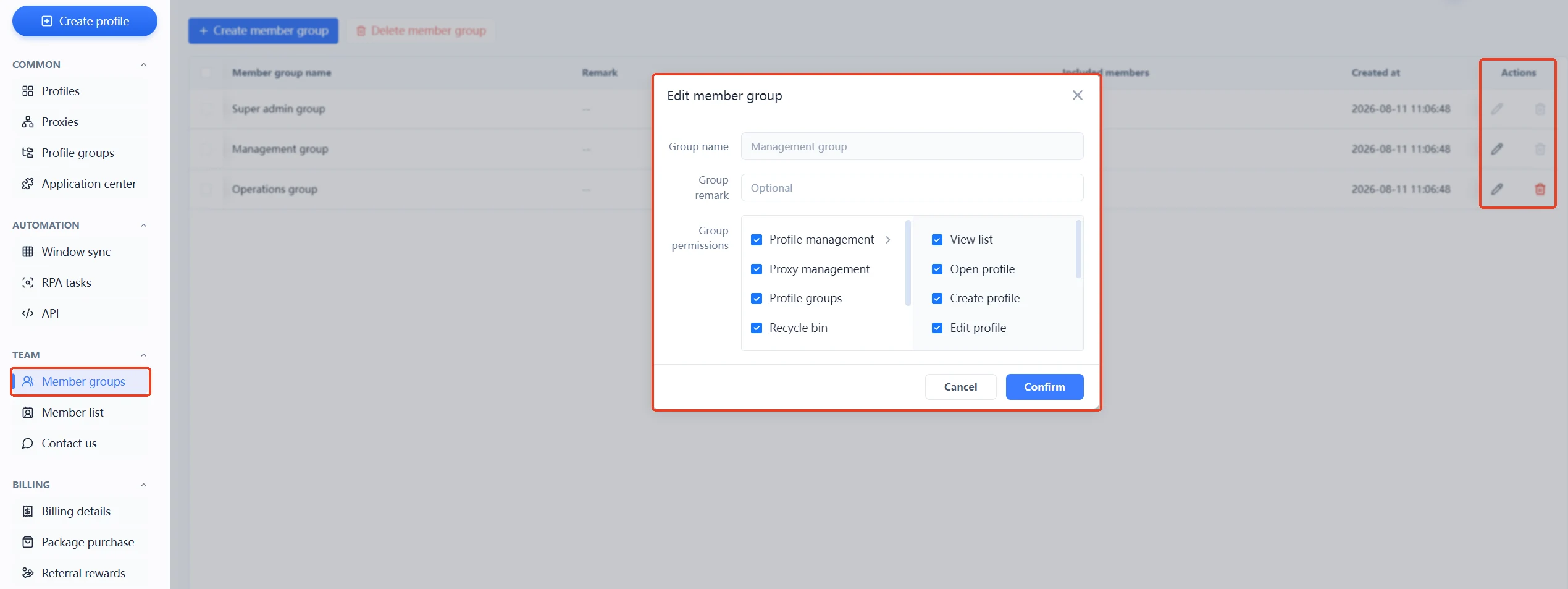
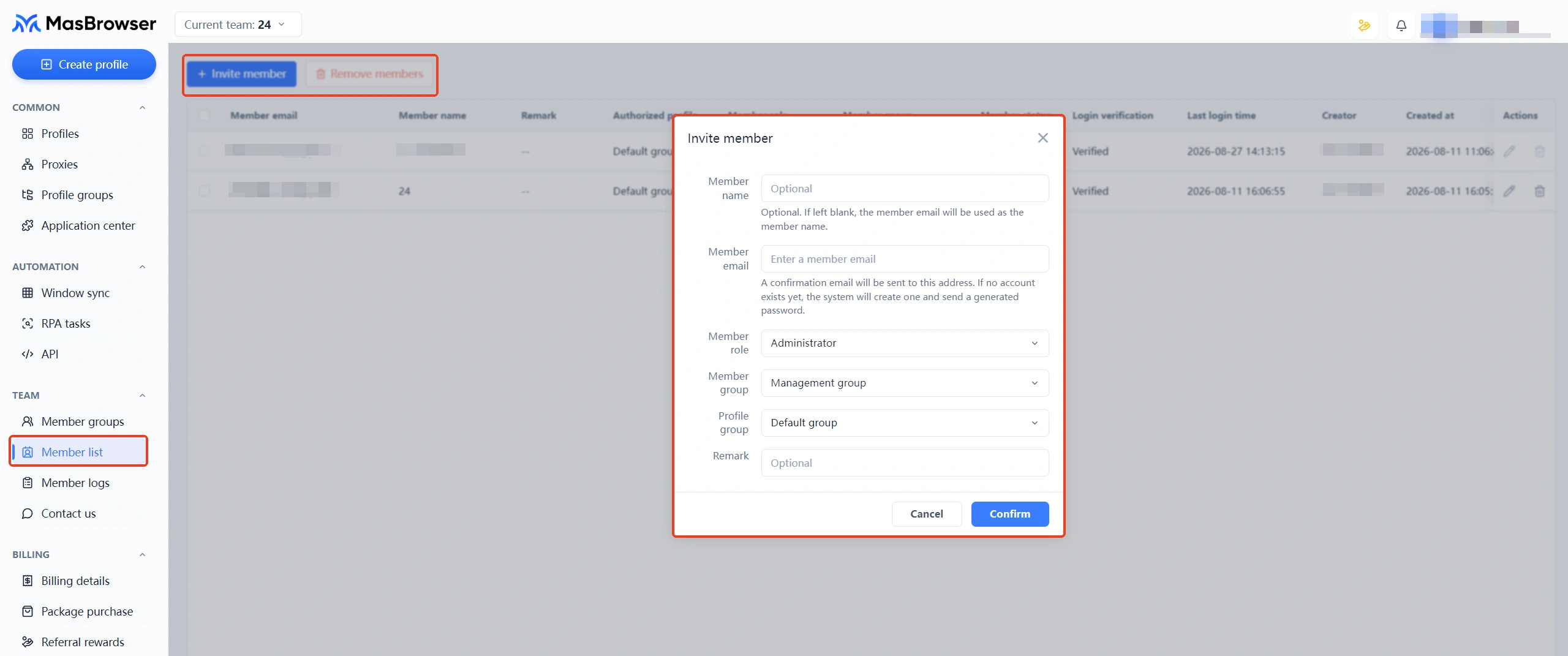
- Invite members: admins enter the team area from the left menu (Member groups / Member list), create member groups, set group permissions, and invite new members — each member logs into the client with their own account, never touching platform passwords.
- Share or transfer environments: select the target environment in Environment Management, share it with members (collaboration mode) or transfer it outright (handover mode) as needed; combined with environment groups, distribution stays tidy.
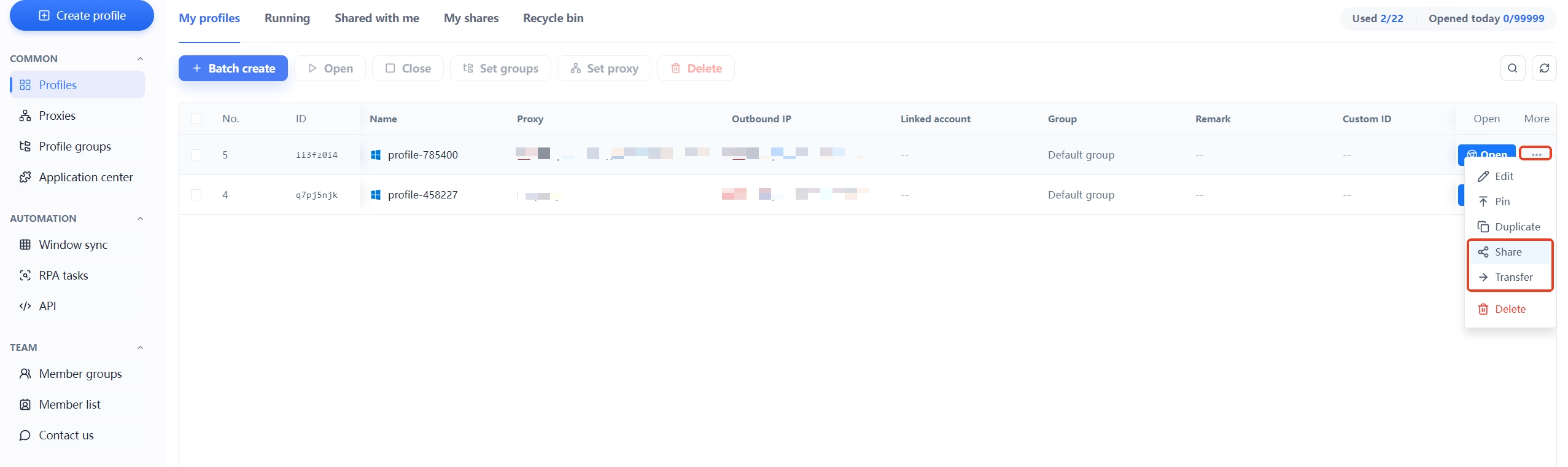
- Plan starting point: the free plan includes 2 member seats — pull in one partner first to run through "invite member → share environment → use on both ends"; scale up members and environments later with Professional (annual discount; the Multi-Account Security Management page explains fully).
- Combining with desktop features: members run their own environments (methods for configuring fingerprints, binding proxies, and logging into accounts are covered for beginners in Fingerprint Browser Install Guide), while batch window management and RPA actions are orchestrated centrally by the owner — managers control the whole; executors handle their own piece.
The moat of team collaboration is getting three things right simultaneously: "environment assets owned by the company + accountability to individuals + rules of usage" — 2 free members are enough to start verifying the flow; scale up after your matrix grows.
FAQ
How many people can use the free plan?
MasBrowser's free plan includes 2 member seats — suitable for "boss + one operator" small teams starting out; upgrade to Professional (10 environments starting, annual discount) when members grow or more environment capacity is needed.
What happens to environments when an employee leaves?
Two steps: ① remove their membership in member management first (cutting access); ② transfer the environments under their name to the colleague taking over — you're transferring the complete environment (fingerprints, proxy, login states included); the newcomer opens it and keeps running, and the platform doesn't perceive a "change of person".
Can multiple people use one environment at the same time?
Technically, environments can be shared with multiple members, but simultaneous operation isn't recommended — concurrent launches and interleaved operations kick each other's sessions off and may trigger platform risk control. For shared use, stagger time slots; long-term tasks are best with one owner per environment.
Can permissions restrict someone to only certain environments?
Grouping by business line plus assigning corresponding environments to corresponding members is the recommended granularity (specific permission settings follow the product UI) — combined with the "one owner per environment" principle, permission boundaries become clear enough.
How long does onboarding a new member take?
If the environment was transferred, the new member installs the client, logs into their own account, opens the environment and keeps running — no need to re-register platform accounts, rebuild fingerprints, or reconfigure proxies. For the full client-install and environment-usage flow, refer to the install guide article linked above; typically independent within half an hour.
Conclusion
Chaos in multi-account teams almost always stems from the same thing: environments bound to individuals — passwords in personal hands, login states on personal computers, handovers done verbally. Fingerprint browser team collaboration flips this: environments are company assets; people are fluid resources — member entry and exit are administrative actions, while environments keep settling in the system.
Remember three things to land it well: share and transfer environments only through tools (never send passwords) | every environment has exactly one owner | remove memberships and transfer environments on the day of departure. Rules plus tools let multi-account teams scale without losing control.
Start with the smallest loop: the free plan's 2 member seats, pull in one partner to run through "invite → share → use on both ends", then roll out division of labor by business line — Download MasBrowser and build your first team space.