
MasBrowser
Customer supportLoading messages…
Loading messages…
You are viewing a previous conversation.
Enter to send · Shift + Enter for a new line
Loading messages…
You are viewing a previous conversation.
Enter to send · Shift + Enter for a new line
Downloading and installing takes only a few minutes, yet every year plenty of users stumble on two things: clicking a non-official site from search results and installing something of unknown origin, or grabbing an old installer forwarded from a group chat or cloud drive, ending up with an outdated version full of problems. People searching "masbrowser download" often see something other than the official site first — brand-name squatting is all too common for tool products.
So this article skips "how to create environments after installing" and focuses on the safety line of downloading and installing itself: how to identify the official site, how to verify the installer, how to install stably on Windows and Mac, and how to confirm you installed correctly afterwards. Follow it once and you are set up in five minutes, with something to verify against at every step.
Counterfeit and name-squatting sites are the biggest risk in the download stage — far worse than installing the wrong version. Search results for tool products usually mix in two things: search engine ad slots — whoever bids highest shows up, so the top result is not necessarily the official site; and brand-squatting sites whose domains look similar and pages look right, but whose "Download" button hands you a file of unknown origin.
Confirming the official entry is very concrete:
Once this step is done, most of the risk in everything that follows is already gone.
Windows users should confirm their system version and check the installer file name before downloading — these two steps are where Win-side mistakes happen most.
Step 1: Confirm your system meets the requirements. The official requirement is Windows 10 or 11, 64-bit. Computers still on Win 7/8 cannot run the new client — do not force the install.
Step 2: Open the official download page and click the Windows download button. Follow the current page on the official site; the installer file name looks like MasBrowser-Setup-x.y.z.exe (2.1.9 at the time of writing). After the download finishes, check the file name in your browser's download history — if the name does not match, do not run it; go back to the download page and download again.
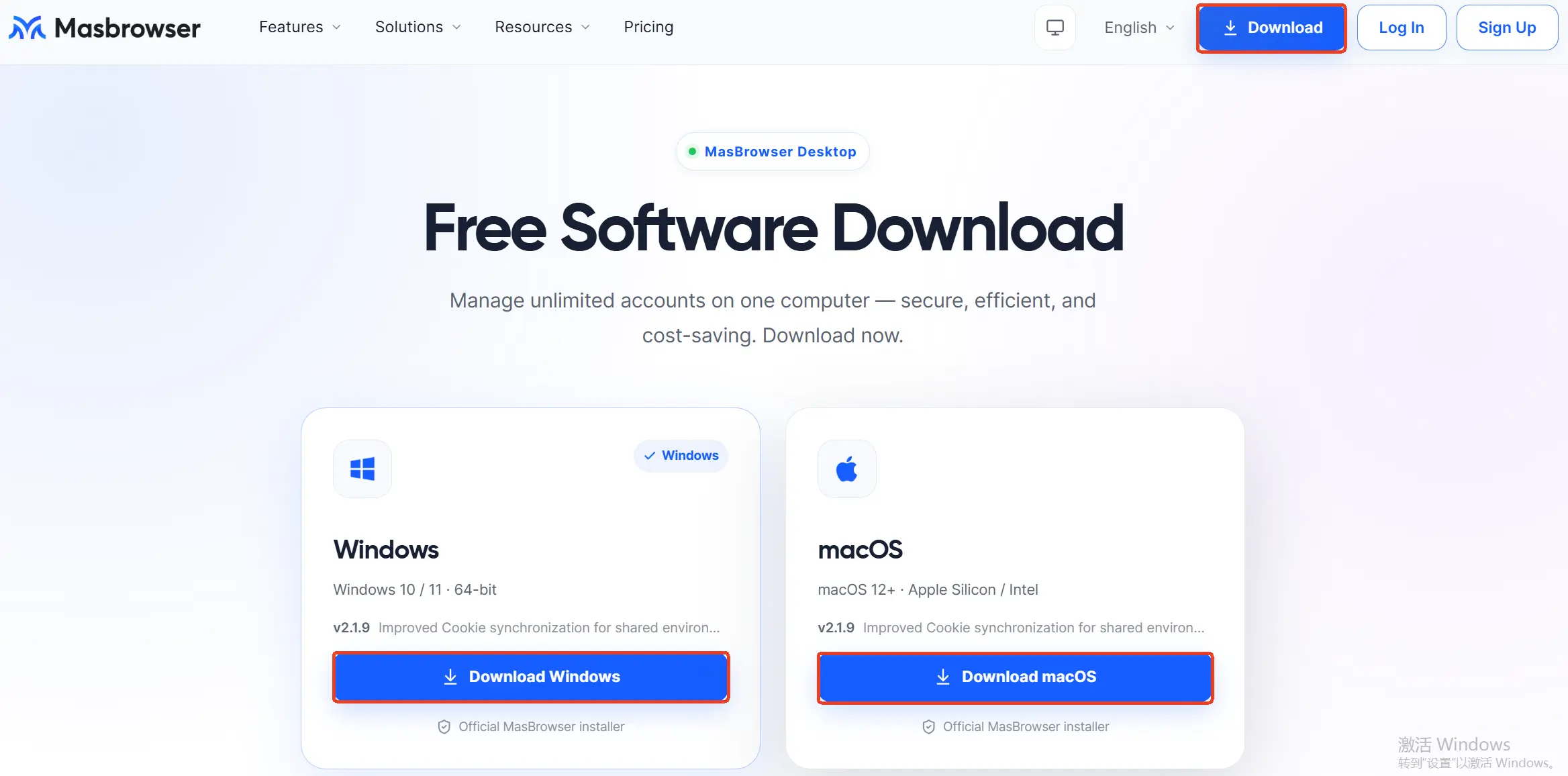 Step 3: Run the installation wizard. Double-click the installer and follow the wizard prompts; the client is small and installs in a few minutes.
Step 4: If the system shows a security prompt, check the source before deciding. Windows SmartScreen sometimes shows a "Windows protected your PC" prompt for newly released installers — this is routine behavior for new programs and does not mean the file is bad. Confirm the package came from the official download page (you verified the file name in the previous step), then choose "Run anyway". If antivirus software flags the file, suspect the download source first instead of rushing to whitelist it: for a package from the official page, verify the version and check with official support; for a package from anywhere else, delete it outright.
On Mac, two things matter: matching the chip and handling the system block on first launch.
Step 1: Confirm the system version and chip. The official requirement is macOS 12 or above, and the installer supports both Apple Silicon (M-series chips) and Intel Macs. Click the Apple menu at the top left and choose "About This Mac" to see the chip model, and make sure the system version is not below 12.
Step 2: Download the dmg installer and verify the file name. Again, follow the official download page; the file name looks like MasBrowser-Setup-x.y.z.dmg. After downloading, the DMG should be tens to hundreds of MB — if it is only a few MB, you most likely grabbed the wrong file or got redirected to another site.
Step 3: Mount the dmg and drag the client into Applications. Double-click the dmg to open it, drag the app icon into the Applications folder as the window instructs, then eject the disk image.
Step 4: The security prompt on first launch. For apps from outside the App Store, macOS may say the developer "cannot be verified" or ask for confirmation on first open — this is Gatekeeper's standard behavior for all non-store apps. The fix: right-click the app and choose "Open" the first time, or allow it under Privacy & Security in System Settings (depending on your system version's actual interface). The precondition never changes: the package must come from the official download page. When a dmg of unknown origin shows the same prompt, letting it through is not the right option.
Installation complete does not mean installation correct. Spend three minutes on this checklist to confirm you have an "official, current-version, properly log-in-able" client:
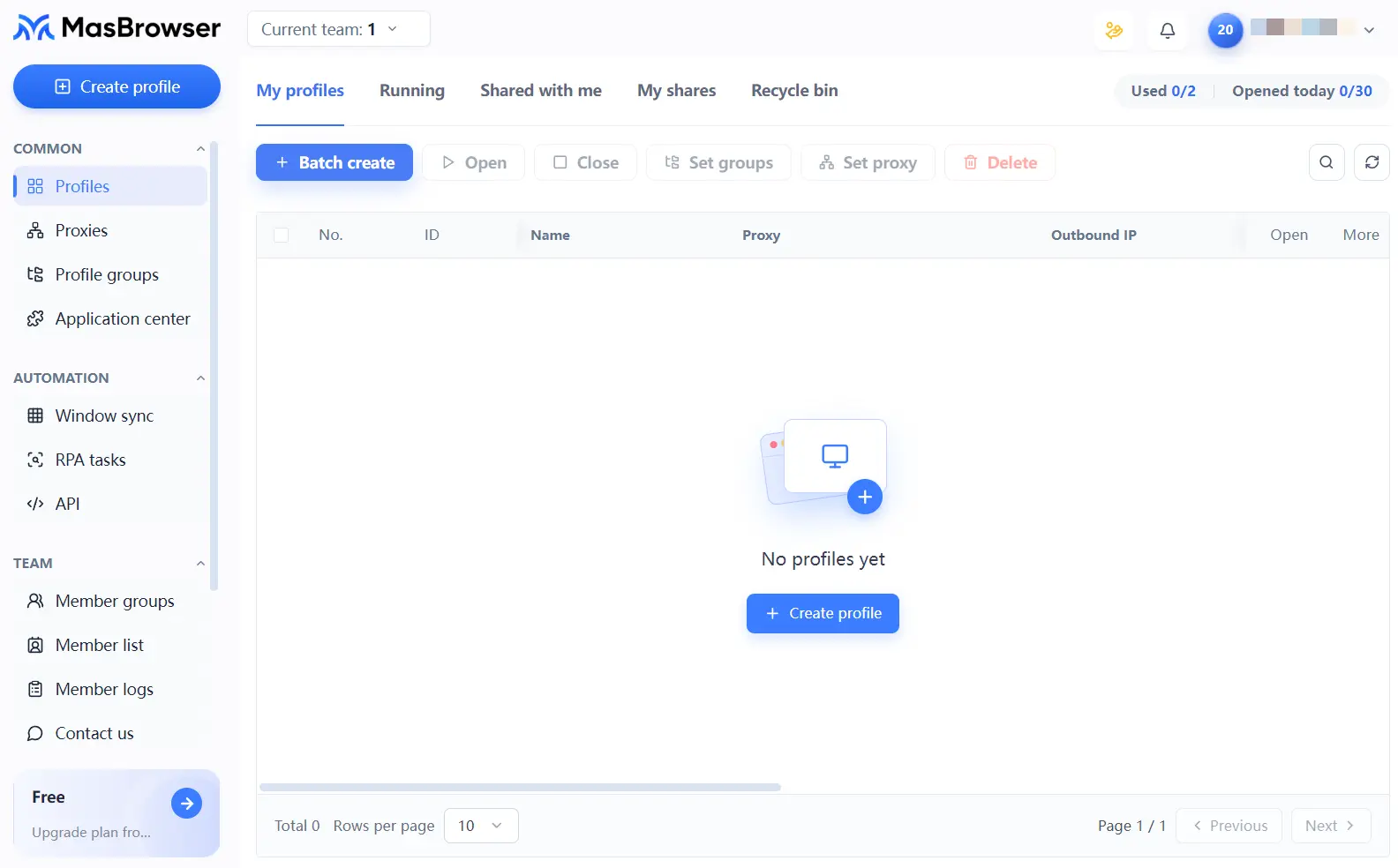 After the checklist passes, continue with the beginner full walkthrough: prepare a proxy, create your first environment, verify isolation (for choosing and configuring a proxy, the fingerprint browser proxy setup guide has the complete steps). Those two articles cover the post-install story in full.
Almost all installation failures concentrate on these three things:
When to reinstall: the client crashes frequently and switching networks does not help, the version number lags far behind the official site, or you suspect a non-official package was installed — in all three cases, uninstall, then get the latest version from the official download page and reinstall; reinstalling does not affect your progress rebuilding environments following the beginner walkthrough.
Ad slots go to the highest bidder, and the official site may run ads too, but ranking alone cannot confirm identity. The safe move is to click no download-related ads — type masbrowser.com manually to reach the official site, then open the download page. Five extra seconds eliminates the entire counterfeit risk.
No. The official requirement is Windows 10 or 11 (64-bit); on Mac it is macOS 12 or above. If your system version is too low, upgrade the system before installing the client — otherwise it will not run stably even if it installs.
Check your network first (switch networks and retry if necessary), then clear the browser's download history and click download again on the official download page. If it keeps failing, try a different browser — do not "download somewhere else" from third-party mirror sites; the source matters far more than download speed.
Officially there are Windows and Mac desktop clients plus a web console — no mobile app. Fingerprint environments depend on the desktop client, so any "MasBrowser mobile" installer on Android should be treated as unofficial and not installed. On mobile at most open the web console in a browser to check things; do not run environments on a phone.
Downloading and installing is step one of everything, and the only stage where a mistake can implicate every account — no matter how clean your environments are, they count for nothing inside a client of unknown origin. The safety line of this article boils down to three sentences: verify the domain letter by letter, verify the installer file name, verify the version number against the official site.
All verification starts at the official site: the MasBrowser download page always carries the current Windows and macOS installers, with system requirements listed at the bottom of the page. After installing, continue building environments with the beginner full walkthrough — five minutes to install, ten minutes to run through, and security done right from step one.