
MasBrowser
Customer supportLoading messages…
Loading messages…
You are viewing a previous conversation.
Enter to send · Shift + Enter for a new line
Loading messages…
You are viewing a previous conversation.
Enter to send · Shift + Enter for a new line
Have you ever wondered: how does a website know whether you opened it on a Windows PC or an iPhone? Why do some sites automatically change their layout on mobile but show the full version on desktop?
The answer lies in a single line of code your browser sends automatically every time you open a webpage — the User-Agent, or UA for short.
For ordinary users, the UA is just data that flashes by when a page loads; for people running multiple accounts, this line of code is the "first clue" the platform uses to identify your device. This article breaks it all down: what exactly is written in the UA, what platforms do with it, and the pitfalls to avoid when changing it.
In one sentence: the UA is a piece of "self-introduction" the browser attaches automatically to every page request — a few segments separated by semicolons that report the browser, OS, engine, and version.
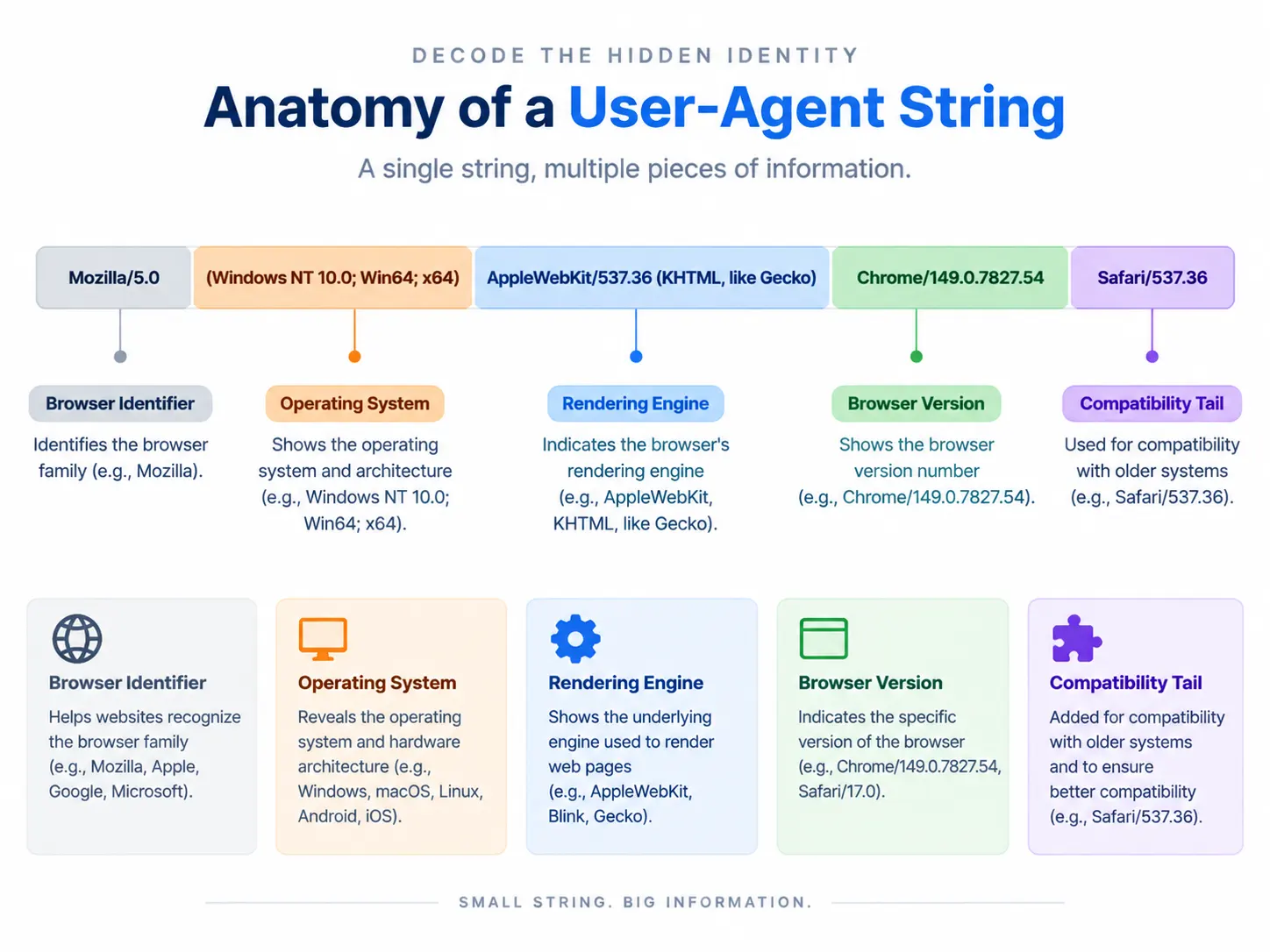
Take a look at a real UA string:
Mozilla/5.0 (Windows NT 10.0; Win64; x64) AppleWebKit/537.36 (KHTML, like Gecko) Chrome/149.0.7827.54 Safari/537.36
Breaking it down, each segment means something:
See it now? The UA reports the OS, browser, engine, and version all at once — and it is completely passive: you did nothing, and it sent itself out.
You can blame a "history of masquerading" in the browser world — every browser today carries other names in its UA, all for compatibility with websites that made wrong judgments in the past.
The story dates back to 1996: back then, the Netscape browser's UA started with "Mozilla," and many websites only recognized this identifier, treating every other browser as "unsupported weirdness." To avoid being shut out, IE added the words "Mozilla/compatible" to its UA. Later Firefox, Chrome, and Safari followed suit one after another, and everyone ended up putting each other's names in — creating today's spectacle where "everyone is Mozilla, everyone is Safari."
Chrome's UA carries Safari not because they are related, but because in the early days some websites only offered full functionality to Safari. This history has made the UA field seriously distorted — it is neither fully trustworthy nor unique.
Platforms read the UA mainly for three things:
Here is the key: the UA is a "declared value" that can be changed freely; while Canvas, WebGL, and others are "measured values" read from real hardware (the principle is covered in this WebGL fingerprint guide). Platforms never trust only the UA — they trust whether "the UA matches the other parameters." When the declaration and the measurements agree, you are a normal user; when they conflict, you become a person of interest.
Here is the most common contradiction: the UA says iPhone, but the screen resolution is a 1920×1080 desktop display — this kind of tell is even easier for risk control to catch than the "UA exposure" itself.
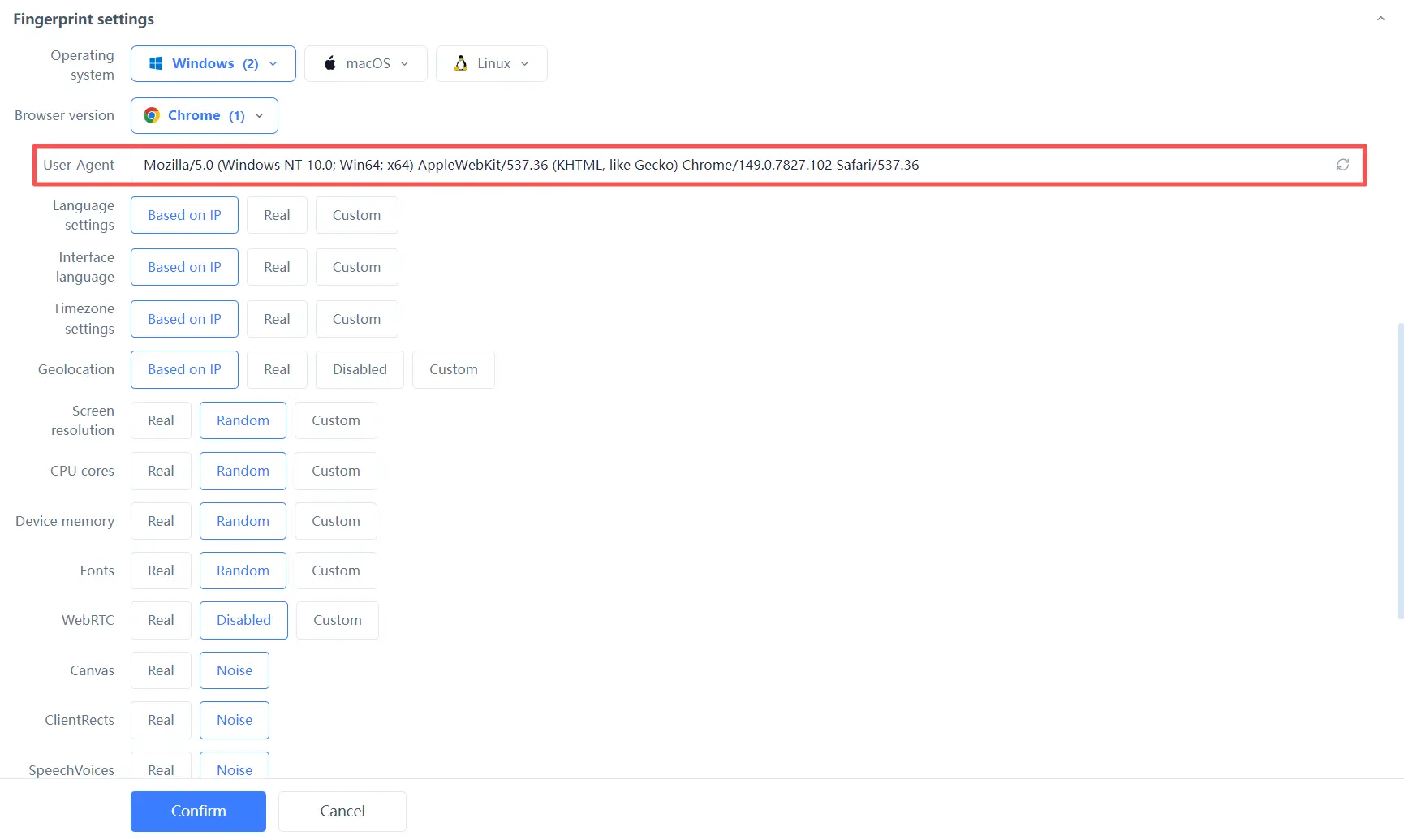
Many people's first instinct is to install a plugin to change the UA, but a plugin only changes the "declaration" layer. To change it "seamlessly," you need to change the parameters that pair with the UA together — and this is exactly what a fingerprint browser excels at. Taking MasBrowser as an example, when creating an environment you can configure the UA and operating system independently in the fingerprint settings; if you choose Windows as the system, the UA automatically matches with a Windows version combination, and the language, time zone, and screen resolution all sync together — no "declaration vs. measurement" conflicts. For the full independent environment and fingerprint isolation configuration, see the MasBrowser multi-account security management page.
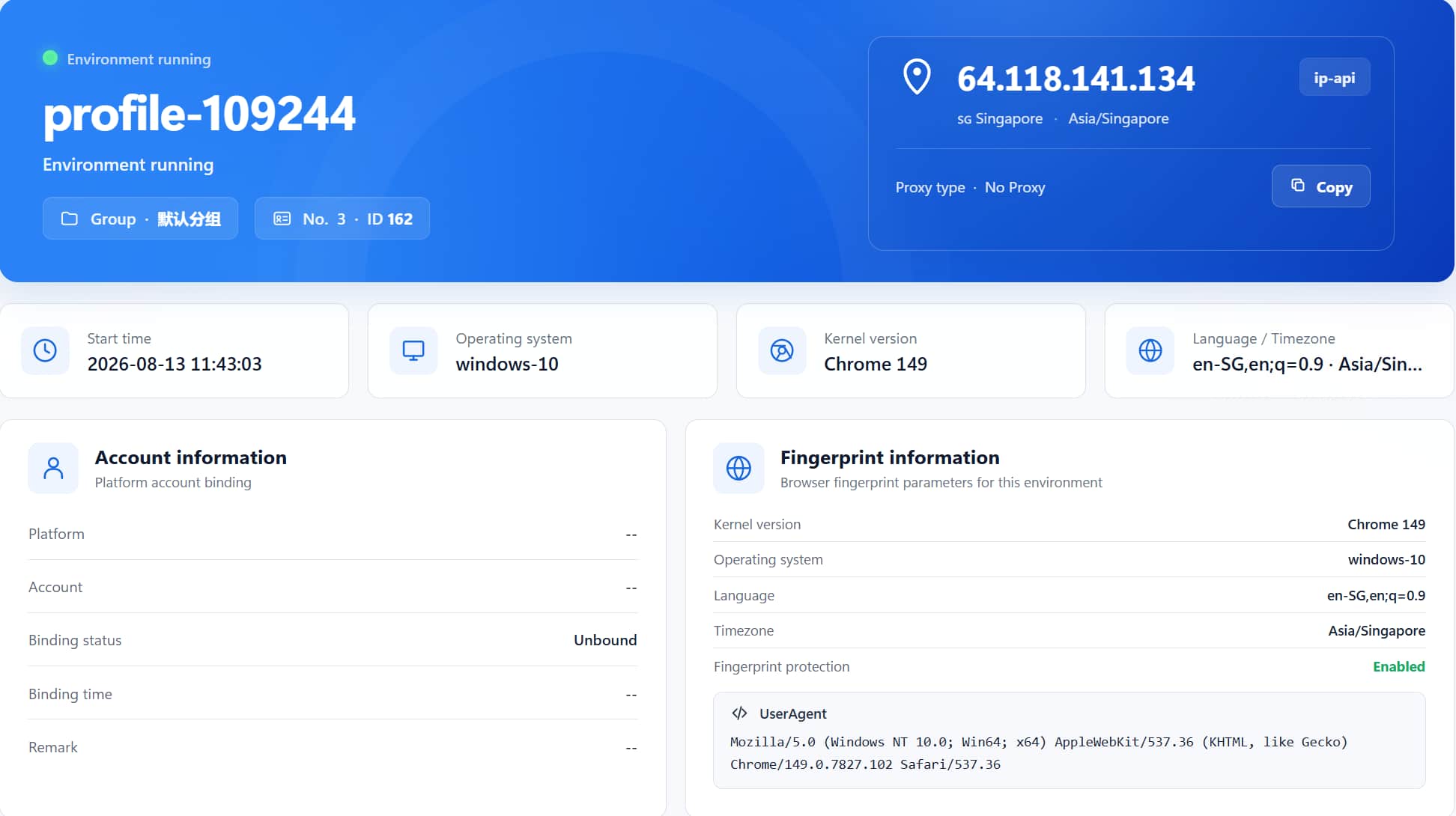
How do you verify the change is correct? Open any fingerprint detection website (Browserscan, etc.) inside the environment and check whether the UA column is consistent with the system, language, and time zone.
Even with a fingerprint browser, people still trip up when configuring the UA:
Remember one principle: the UA itself is not the point — "whether the UA is consistent with the other parameters" is the point. A consistent UA is the least conspicuous UA.
Not by itself. The UA is only a "declared value," and platforms cross-check it against "measured values" like Canvas, WebGL, and fonts. Changing only the UA without the matching parameters actually makes the "declaration vs. measurement contradiction" easier to expose.
No. Incognito mode only stops saving browsing history and cookies; the UA is still sent according to the browser's real information — this follows the same logic as browser fingerprinting and does not change the UA itself.
It depends on your target market and platform. The key is "consistency": if you choose a mobile UA, the screen resolution, touch capabilities, language, and time zone should all look like a phone; if you choose a desktop UA, configure the whole set as a desktop. Mixing is the biggest tell.
Platforms cannot see the "trace of modification," but they can see "inconsistency." The UA itself can be changed; the problem is not leaving contradictions after changing it — which is exactly why fingerprint browsers configure the UA, system, language, and time zone in sync.
The UA is an "identity card" the browser proactively sends on every visit, full of information about your system, browser, and version. For historical reasons it looks the same on everyone yet different for everyone — it is the "first clue" platforms use to identify devices, but never the only basis: what platforms really look at is whether the UA is consistent with the rest of the fingerprint parameters.
So what multi-account operators need to do is not "hide the UA," but "make the UA consistent with the whole environment." The free plan already includes 2 environment slots — download MasBrowser, create an environment and see how the UA, system, and language are configured in sync. This step will make every one of your accounts look like "a normal user."