
MasBrowser
Customer supportLoading messages…
Loading messages…
You are viewing a previous conversation.
Enter to send · Shift + Enter for a new line
Loading messages…
You are viewing a previous conversation.
Enter to send · Shift + Enter for a new line
People running account matrices have mostly had this "exhausted to the point of questioning life" moment: a dozen browser windows open at the same time, each logging into Amazon, Facebook, TikTok, or the Shopify dashboard — you have to switch back and forth one window at a time to publish content, fill in the same forms, repeat the same set of actions. Switching between a dozen or twenty windows once is enough to blur your eyes, and efficiency is extremely low. Worse, multi-account setups with multiple monitors and messy desktops mean finding which window belongs to which account is all memory work.
This scenario has a dedicated solution: Window Sync — letting multiple browser instances coordinate and execute window management actions in sync, so dozens of accounts are managed in bulk like "one team." This article is about window sync in a fingerprint browser — what it can do, typical scenarios, how to use it in MasBrowser, and the pitfalls to avoid.
First, let's position "window sync" in multi-account operations (the environment isolation logic for multiple accounts is fully covered in MasBrowser fingerprint browser — this article focuses on "window-level coordination"):
So the core value of window sync is one line: batch management at the window layer + independent isolation at the fingerprint layer — the two don't conflict; accounts still log into their own spaces, but management actions can be "one operation, multiple windows respond."
Using MasBrowser as an example, the core flow of window sync has three steps (entry: left menu "Automation" → "Window Sync"):
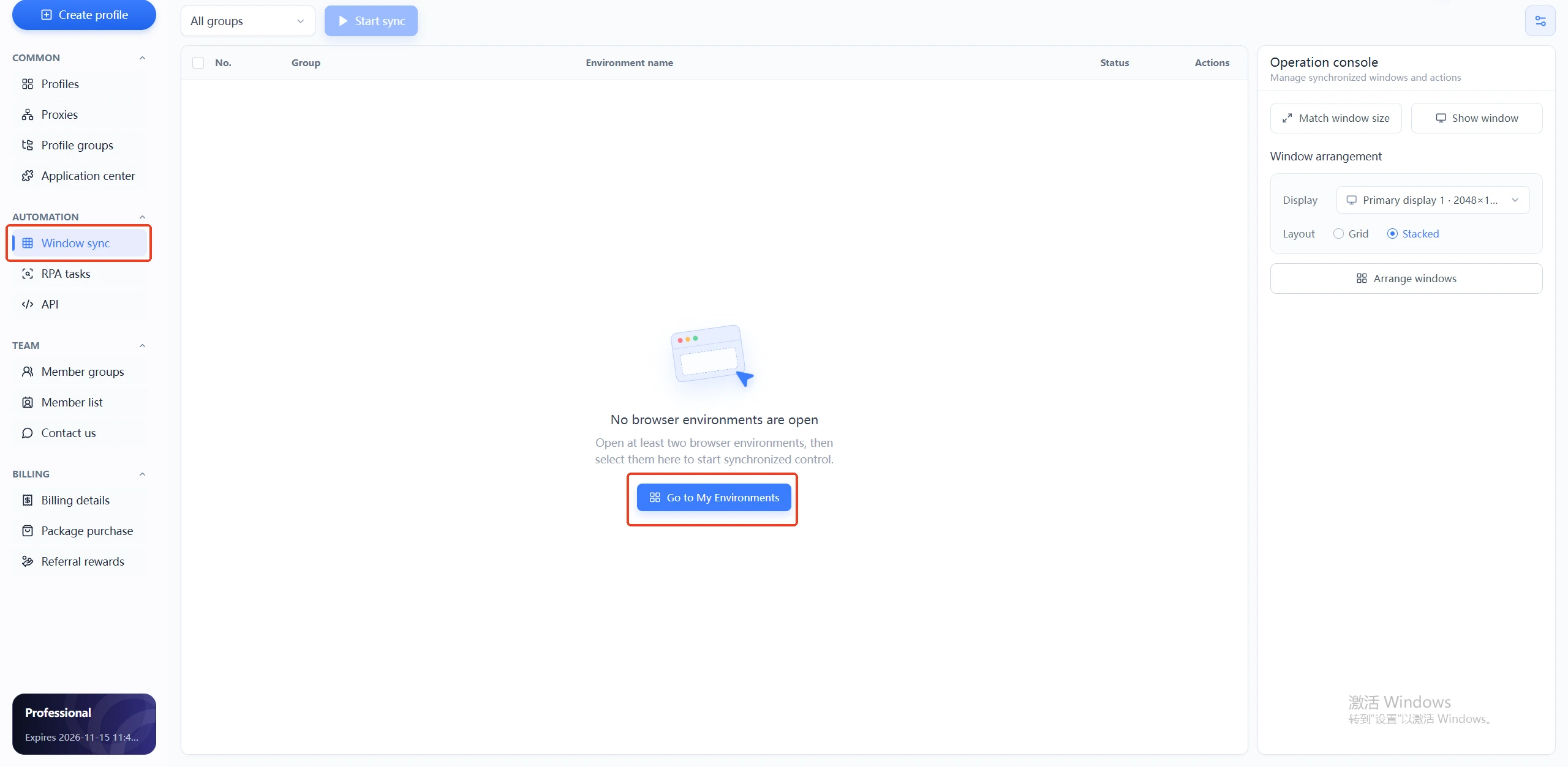
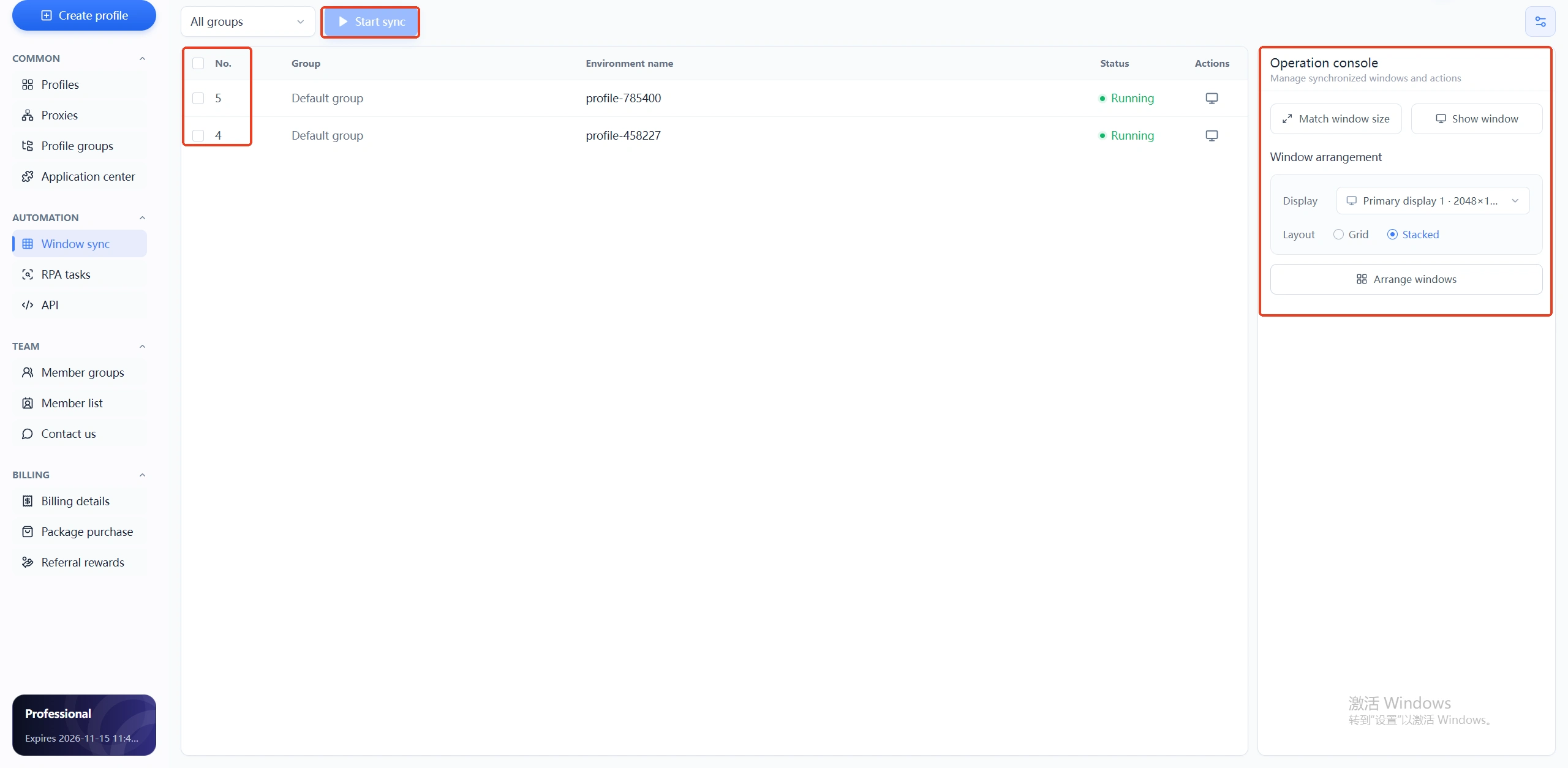 The core of the three steps is "launch environments → check → one-click operation" — a window layout that would take half an hour of dragging by hand becomes neat and uniform in a dozen seconds. Two things beginners most often miss: first, going straight to the Window Sync page without launching environments — the page then shows "No browser environments are currently open" — just click the "Launch Environment" button at the top of the Window Sync page to jump over and launch; second, forgetting to click "One-click Arrange" after checking — checking only selects the scope; the action buttons in the console are what actually take effect.
Which scenarios really need window sync? These four cover most cases:
The common thread across the four scenarios is "multiple windows + see/operate at the same time" — single-account operations don't need it; matrix operations make it a must.
MasBrowser's console provides two arrangement modes (the screenshots show "Dual-Display Tiling" and "Cascade" options), and different scenarios call for different choices:
The core principle for choosing is "usage frequency + screen space": when usage is high across the board and the screen is big enough, tile (monitoring, demos); when there's a primary-secondary split or screen space is tight, cascade (one in operation while others stand by). Two practical details: when monitor resolutions differ (e.g. laptop 2560×1600 + external 1920×1080), click "Uniform Size" before arranging so windows don't end up mismatched; when there are too many windows on a single screen, don't force tiling — cascade + taskbar switching is easier to read than a squeezed mess.
Window sync looks simple, but the pitfalls are in the details:
The first three pitfalls affect "whether sync works well"; the fourth affects "whether efficiency really goes up" — the value of window sync lies in "just enough" windows, not "the more the better."
Window sync solves "how windows are arranged," while matrix operations also need "how actions are done" — these two capabilities sit side by side under MasBrowser's "Automation" menu: Window Sync / RPA Tasks. Together they form a complete pipeline:
This combo fits three high-frequency scenarios: scheduled posting for social matrices, batch form filling (multi-store dashboards side by side → RPA fills prices and inventory), batch ad account inspection (multi ad dashboards tiled → RPA collects data) — window sync handles "seeing," RPA handles "acting," and together they slash repetitive labor in matrix operations.
Window sync is essentially a "window management layer" tool; it doesn't break isolation between accounts. Take MasBrowser as an example:
The moat for multi-account operations is getting device fingerprint isolation (security) + window sync management (efficiency) right at the same time. The free version includes 2 environment slots — launch two instances to run through the "check → one-click arrange" flow first, then scale up to the full matrix.
No. Window sync synchronizes "window management actions" (uniform size, uniform arrangement, uniform display), not account login states. The logged-in accounts, cookies, and fingerprints of each environment remain completely independent. Behind the synced windows are still independent devices and accounts.
System snapping only arranges "windows already open" and requires dragging one by one; MasBrowser window sync manages in batch by checking environments directly from the list — it can also uniform size, one-click arrange, and assign by display, and is far more efficient than system snapping when there are many windows (10+). System snapping also doesn't care "which windows belong to which environments"; window sync manages by environment group, so nothing gets misarranged.
It depends on computer performance, the number of screens, and the MasBrowser quota. In theory every checked environment can be synced, but too many windows displayed at once will exceed screen space. Suggested batching by task: 5-10 for monitoring, 3-5 for demos, about 5 for batch uploads — that's the most efficient.
Yes. MasBrowser offers "Dual-Display Tiling" and "Cascade" — on a single screen, use cascade (windows stacked) or split the screen into multiple virtual desktops at the OS level for tiling; with multiple displays, tiling is neater. The number of screens and resolution determine how many windows you can actually read clearly — when resolutions differ, "Uniform Size" first, then arrange.
No. Window sync is only a window management layer tool — it doesn't change the fingerprint, IP, or login state behind each window. Platforms see "multiple independent devices operating their own dashboards," exactly the same effect as clicking one by one manually. But if the account itself violates rules (shared IP, etc.), that's an account problem, not a window sync problem.
RPA is "action automation" (automatic clicks, fills, publishing, executed by script); window sync is "window management coordination" (arranging multiple windows neatly, unifying actions). They don't conflict — RPA can act on windows opened by window sync (arrange first, then use RPA to execute in batch) — that's the efficient combo for matrix operations (window sync handles operations, RPA handles actions).
Window sync in a fingerprint browser solves the "window-layer efficiency" problem most easily overlooked in matrix operations: multi-account multi-window no longer means dragging and switching one by one — uniform size, uniform arrangement, uniform display, and window management for dozens of accounts goes from "exhausting" to "neat."
But remember three principles: window sync synchronizes "window management actions," not "account sharing" (device fingerprints and login states stay independent); window sync requires "instances already open" (launch multiple browsers in Environment Management before syncing); window sync handles "seeing," RPA handles "acting" (together they form the complete matrix pipeline). Start with the first batch of 5 environments, run through "launch → check → one-click arrange," then add RPA step by step — the free version's 2 environment slots are enough to start. Download MasBrowser and get your first window sync scenario running.