
Download and Install MasBrowser Client
Download the official MasBrowser client for Windows 10/11 and macOS 12+. System requirements, install steps, and how to verify a successful install.
This guide explains how to download and install the MasBrowser desktop client, available for both Windows and macOS.
Step 1: Go to the Download Page
Open the MasBrowser anti-detect browser official website and click the "Download Client" button in the upper-right corner to go to the download page.
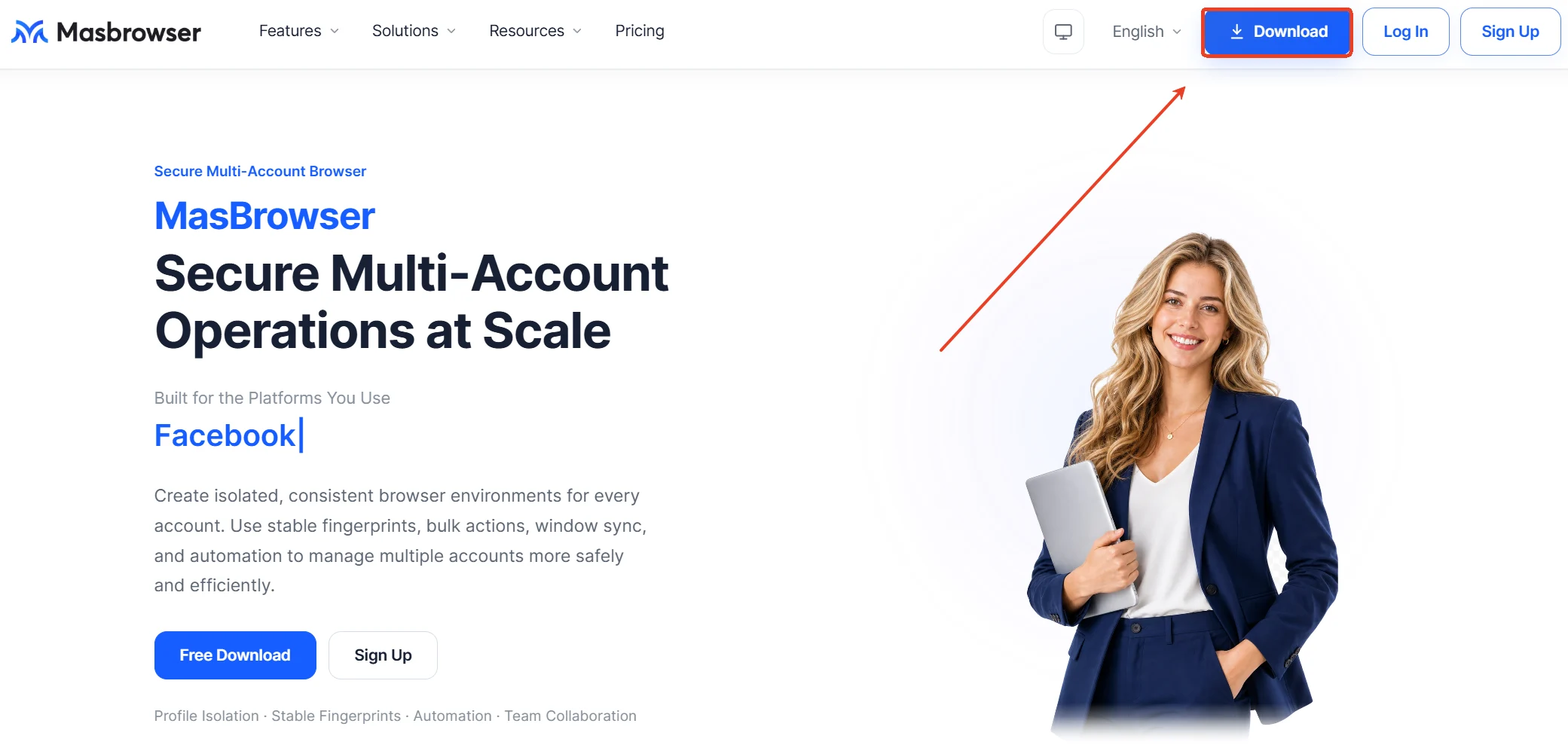
The download page offers official installers for both Windows and macOS.
Step 2: Download the Installer
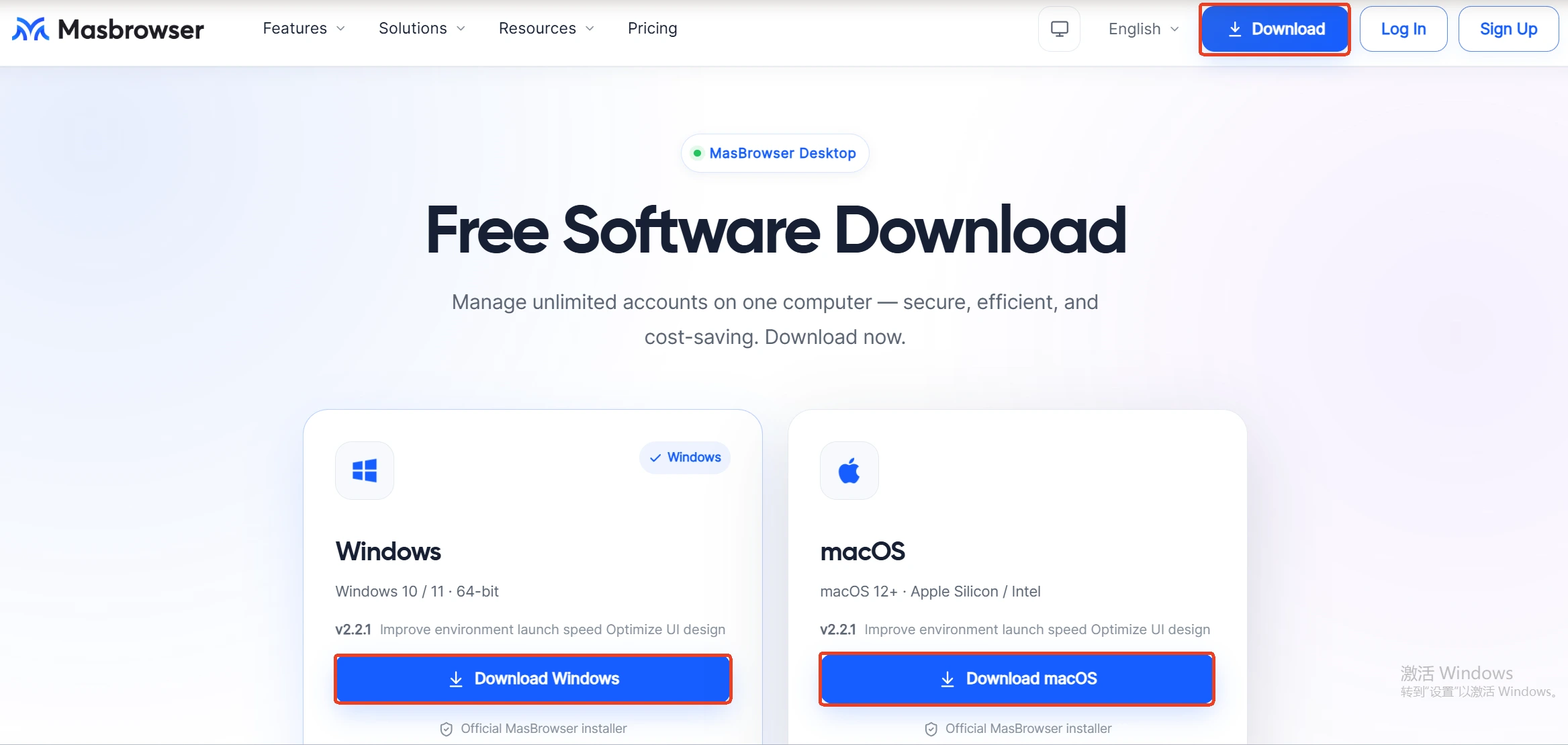
Click the download button on the card that matches your computer's operating system.
The two versions currently available on the download page:
| Version | System Requirements | Download Button |
|---|---|---|
| Windows | Windows 10 / 11 (64-bit) | Download Windows |
| macOS | macOS 12 and above (Apple Silicon / Intel) | Download macOS |
Notes:
- Both installers are labeled "Official MasBrowser Installer" — do not download the client from third-party sources
- The version number shown on the page changes with each update; always refer to what the download page displays
- macOS users should choose the installer that matches their chip type (Apple Silicon or Intel)
Step 3: Install the Client
Once the download is complete, run the installer and follow the on-screen instructions to finish the installation.
- Windows: double-click the downloaded installer and follow the setup wizard, then launch the client when finished
- macOS: you will get a
.dmgfile (e.g.,MasBrowser-Setup-2.2.1.dmg). Double-click to open the disk image, drag MasBrowser into the "Applications" folder to complete the installation, then launch the client from "Applications" or "Launchpad"
Step 4: Launch and Verify
After installation, launch the MasBrowser client. If you see the login screen, the installation was successful.
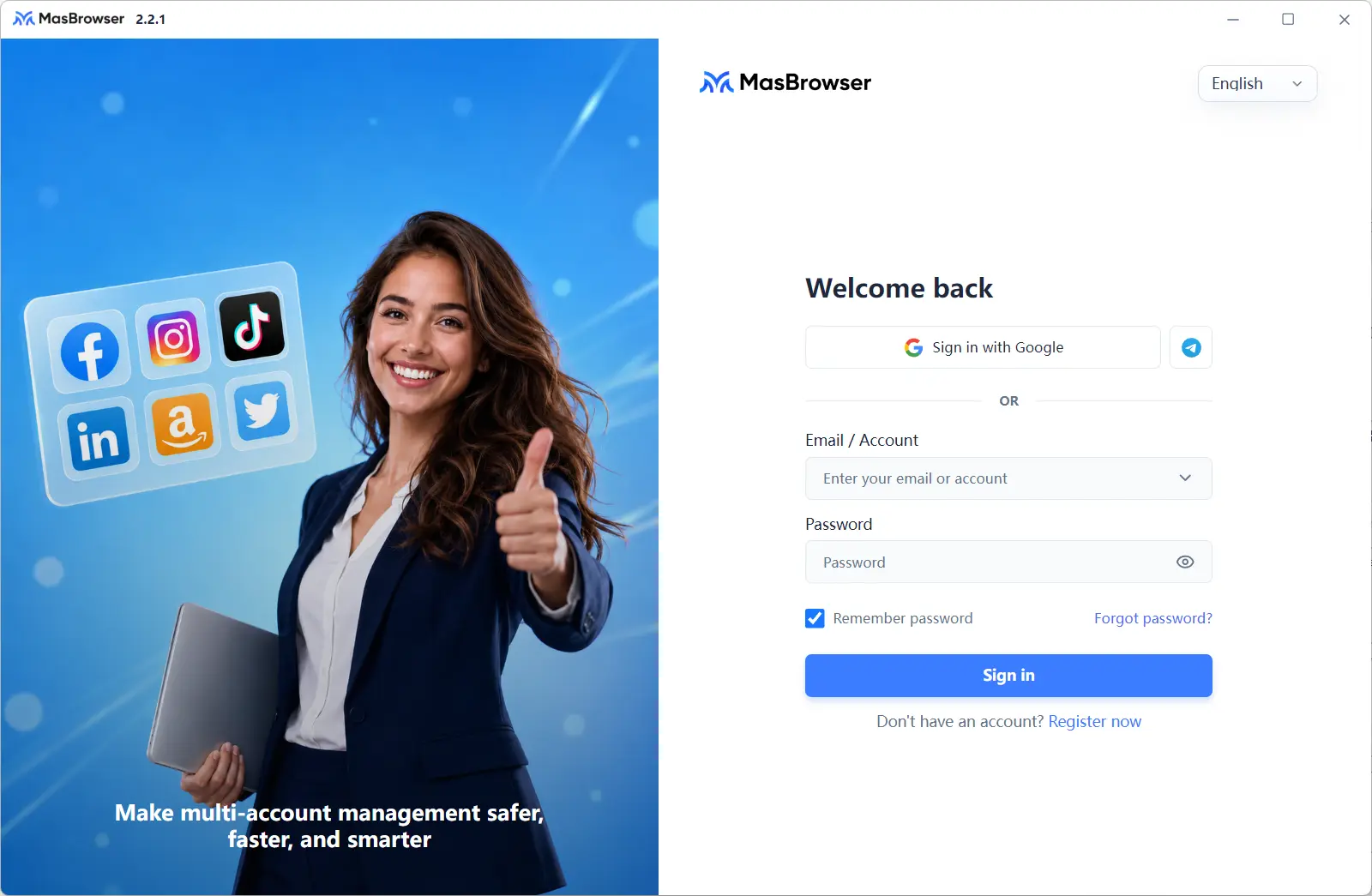 Log in with your registered account and you will land on the "Profile Management" page, ready to start creating browser profiles.
FAQ
Is the MasBrowser client free?
The client is free to download and install. The features and profile quota available to you depend on your plan — check "Plans & Pricing" in the client for details.
Can my computer run it?
Windows requires Windows 10 / 11 (64-bit); macOS requires macOS 12 or above, supporting both Apple Silicon and Intel chips. Older system versions are not guaranteed to work properly.
What should I do if the download button doesn't respond?
First check your network and browser download settings. You can also return to the homepage and click "Download Client" in the upper-right corner to re-enter the download page. If the download still fails, contact us through the official support channels on the website.
What if the client won't open after installation?
Make sure your system meets the requirements (Windows 10/11 64-bit, macOS 12+), then re-run the installer to reinstall over the existing copy. If the problem persists, note down your operating system version and contact support.
How do I update to a new version?
When a new version is released, download the latest installer from the official download page and install it over the existing version. For specifics, refer to official announcements.