
Register an Account and Log In
Register a MasBrowser account with Google or email. This guide covers sign-up steps, verification codes, client login, and how to reset a forgotten password.
This guide explains how to register a MasBrowser account and log in to the client, covering three scenarios: Google sign-in, email registration, and password reset.
Step 1: Open the Login Screen
Launch the MasBrowser client and you will first see the login screen.
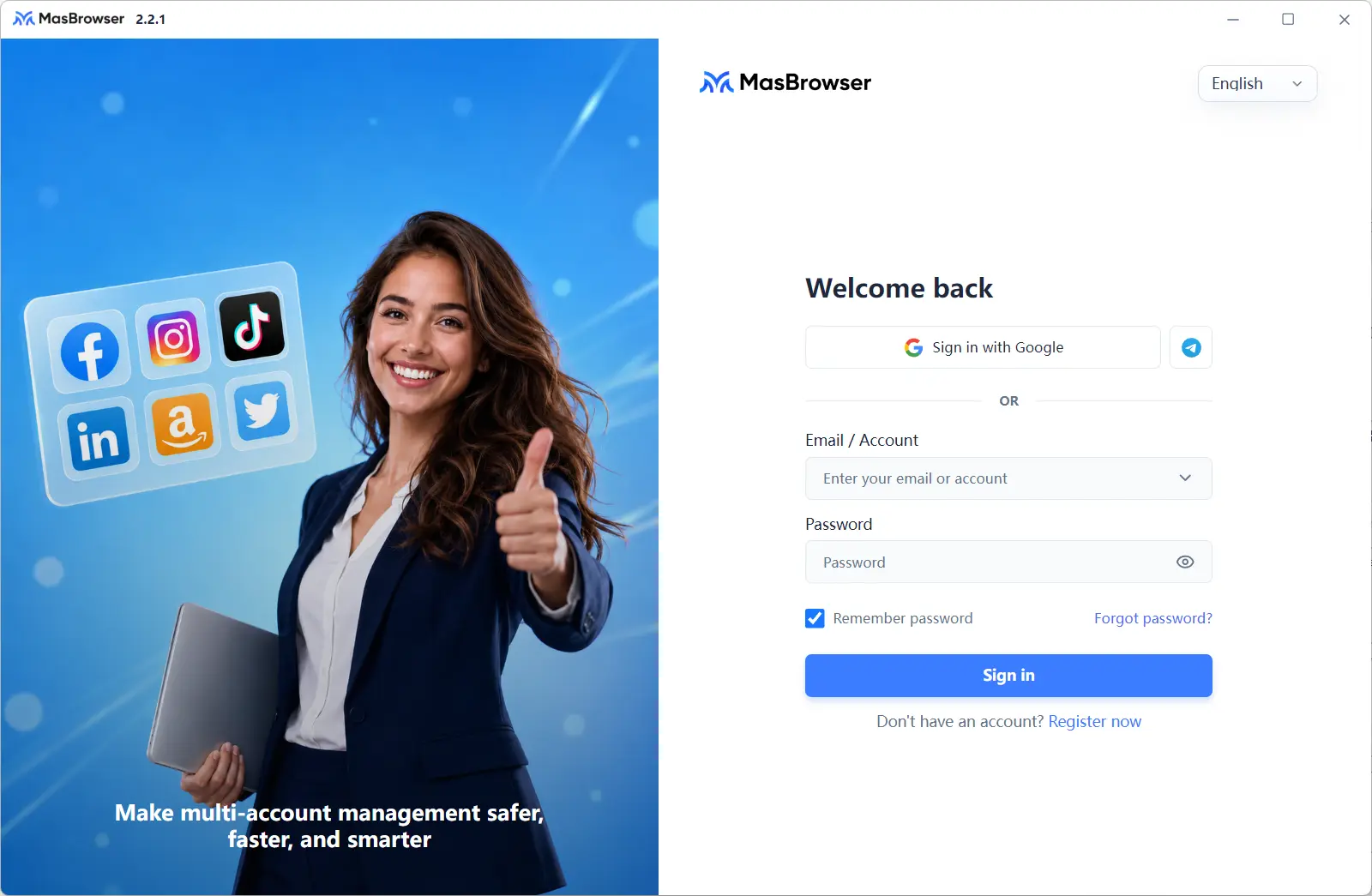
You can switch the interface language in the upper-right corner of the login screen. If you don't have an account yet, click "Sign Up Now" below the login button to go to the registration screen.
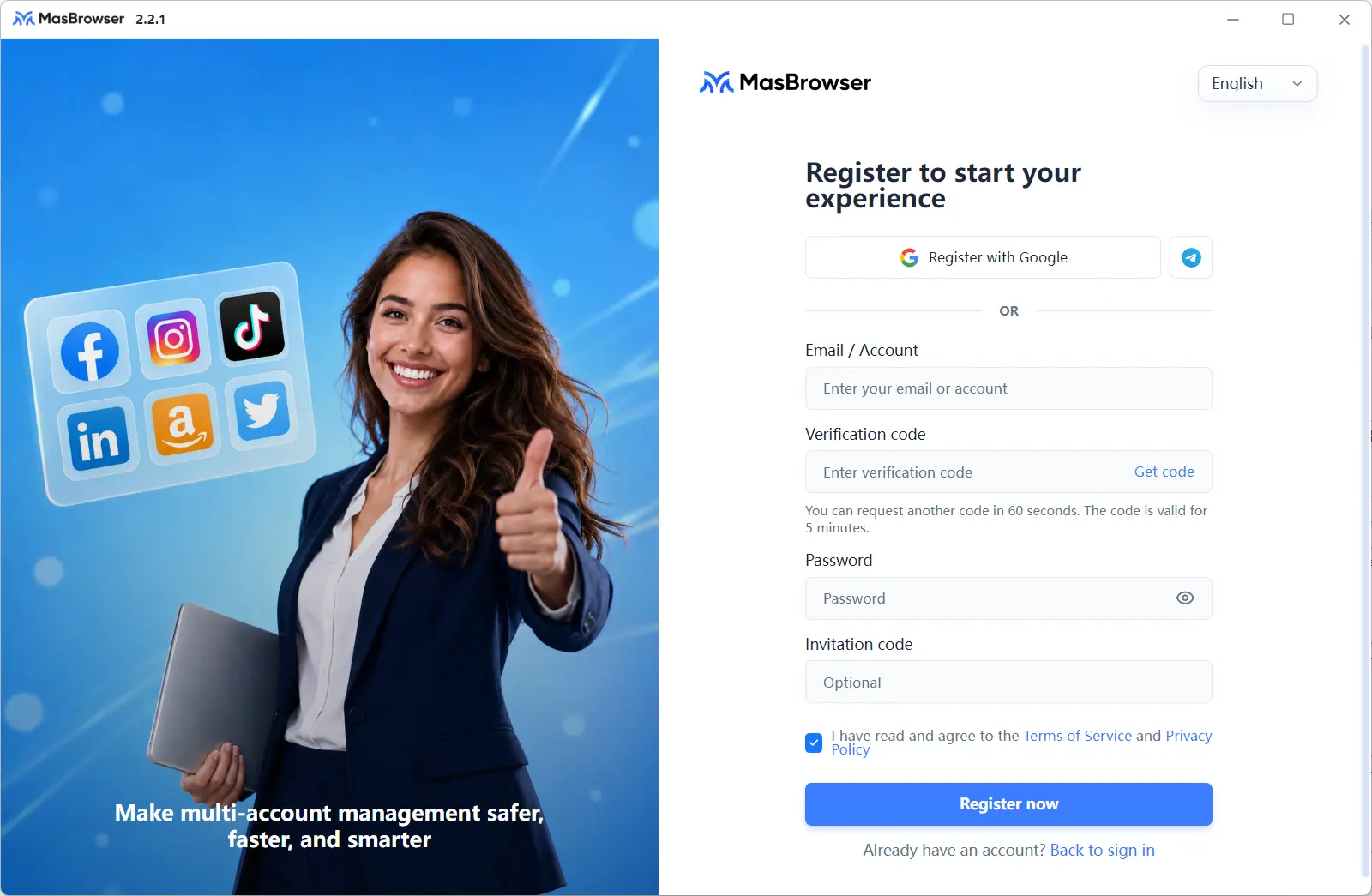
Step 2: Register an Account
MasBrowser supports two registration methods:
- Google sign-up: click the "Sign Up with Google" button and register directly with your Google account
- Email registration: fill in the information below, then click "Sign Up Now"
| Field | Required | Description |
|---|---|---|
| Email/Account | Yes | Used for logging in and receiving verification codes |
| Verification code | Yes | Click "Get Code" to send it to your email; you can resend after 60 seconds, and the code is valid for 5 minutes |
| Password | Yes | Used to log in to the client |
| Invitation code | No | Enter it if you have one; otherwise leave it blank |
Check "I have read and agree to the Terms of Service and Privacy Policy", then click "Sign Up Now" to complete the registration.
Step 3: Log in to the Client
After registering, return to the login screen and sign in with the account you registered.
- Google / Telegram login: click the "Sign in with Google" button or the Telegram icon next to it, and log in directly with the corresponding account
- Email/account login: enter the email/account and password you registered with, then click "Log In"
If you check "Remember Password", you won't need to re-enter your password the next time you open the client.
After logging in, you will land on the "Profile Management" page by default, ready to start creating browser profiles.
What to Do If You Forget Your Password
Click "Forgot Password?" on the login screen to go to the password reset screen.
- Enter your registered email and click "Get Code"
- Enter the verification code sent to your email (you can resend after 60 seconds; the code is valid for 5 minutes)
- Set a new password and click "Confirm"
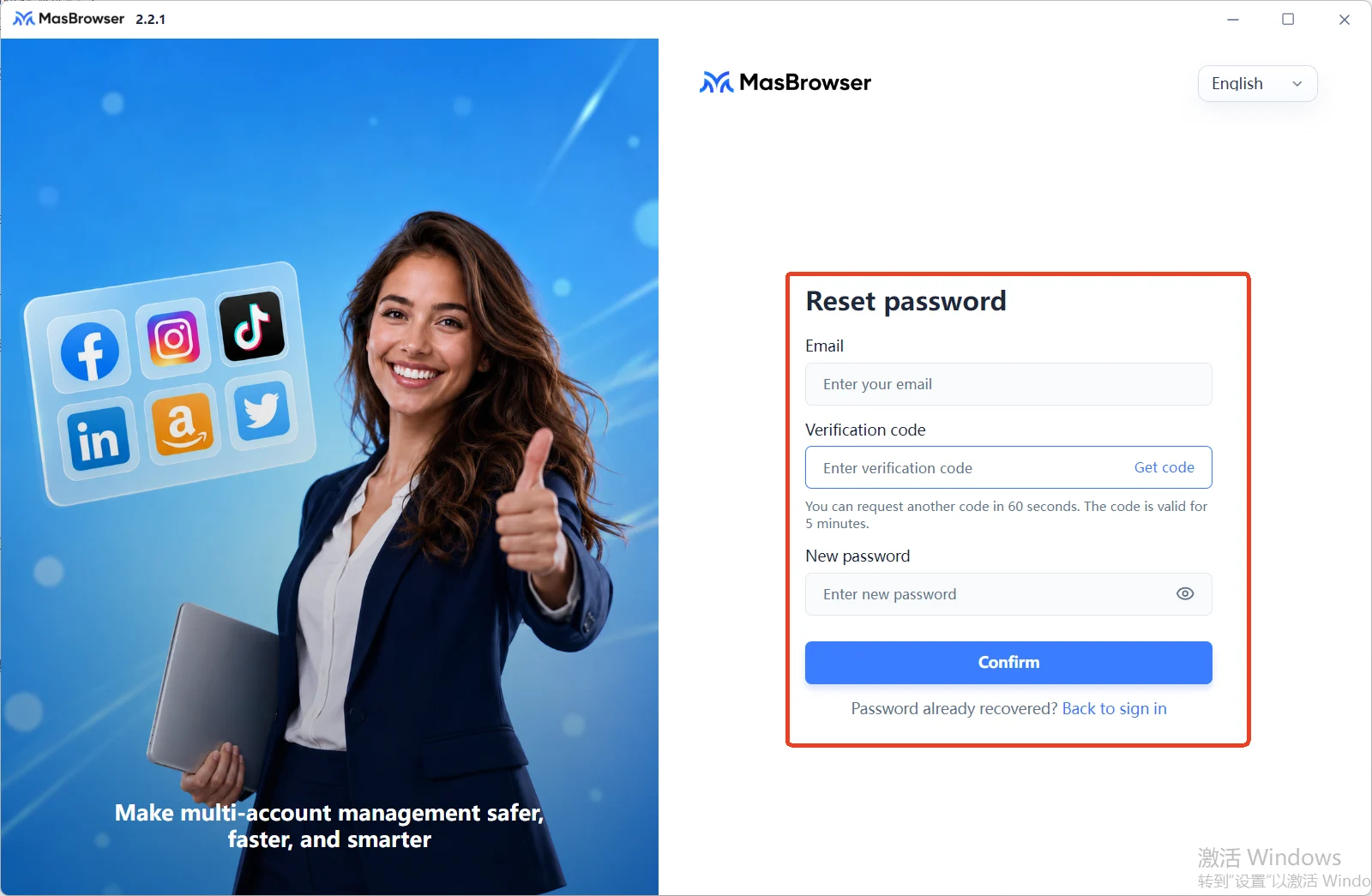
Once the reset is complete, click "Back to Login" and sign in with your new password.
FAQ
Which registration and login methods are supported?
Registration and login methods are the same: Google account, Telegram, or email/account with password. Email registration requires verification via email code.
What if I don't receive the verification code?
First check your email's spam/junk folder and confirm the email address is entered correctly. Verification codes are valid for 5 minutes. If you get an error because the code expired or the 60-second cooldown hasn't ended, wait for the countdown to finish and request a new code.
What if I forget my password?
Click "Forgot Password?" on the login screen and reset it with the verification code sent to your registered email. See "What to Do If You Forget Your Password" above for the full process.
Is the invitation code required?
No. The invitation code is optional — leave it blank if you don't have one. It does not affect registration.
Can I log in directly with my Google account?
Yes. If you signed up with Google, simply click "Sign in with Google" when logging in — no password needed.