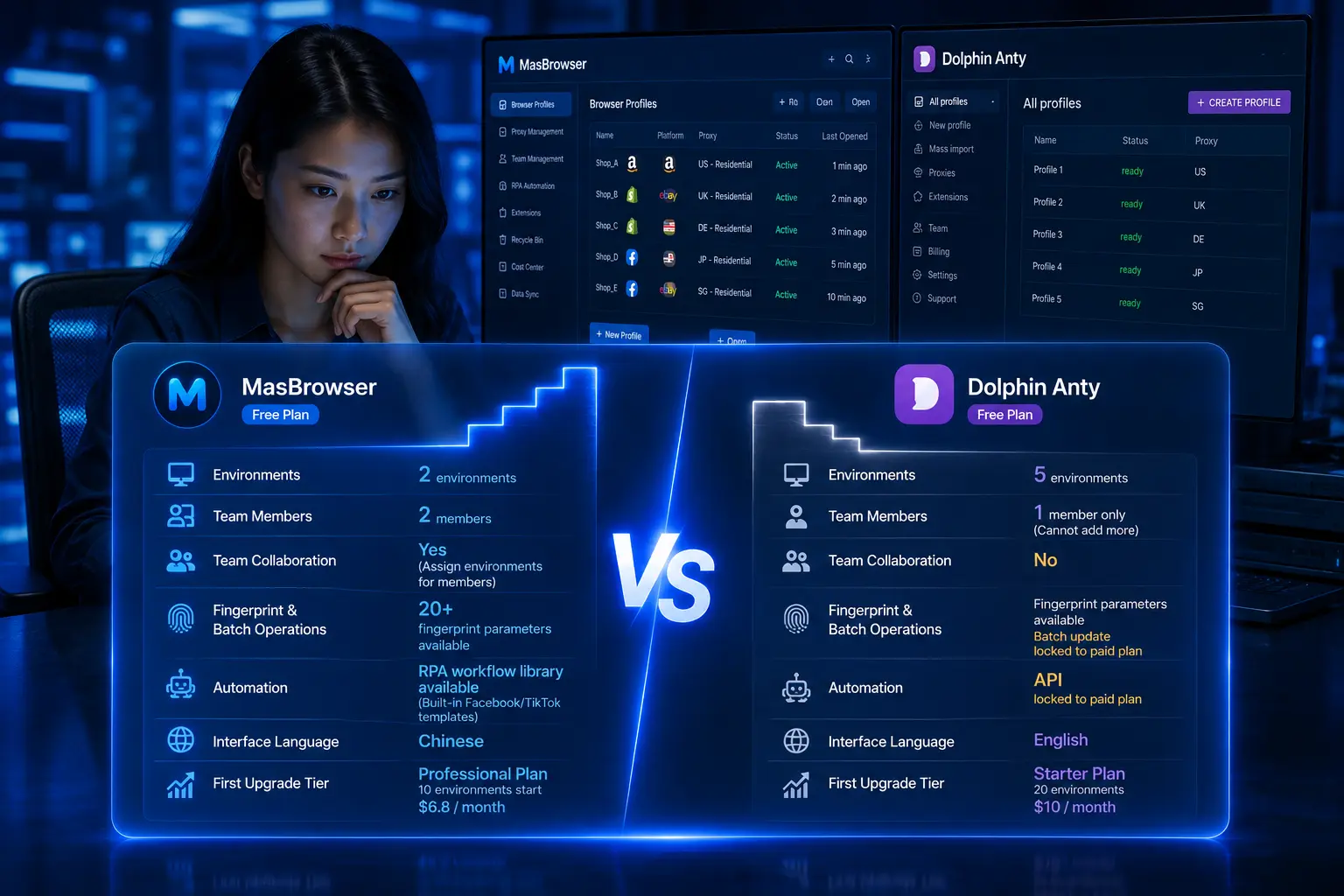
How to Import Cookies in a Fingerprint Browser? Restore Login State with MasBrowser
People running multi-account operations have mostly been through this "re-login nightmare": you switch computers, and a dozen accounts all need to be logged in again — verification codes, 2FA, phone confirmations — one account takes five minutes of fiddling, and half a day is gone; or a colleague hands over an account environment, and the new person has to log everything in again because the login state is gone. Worse, some platforms flag frequent cross-device re-logins, and accounts get restricted right in the middle of working.
The common fix for these scenarios is manually importing Cookies to restore login state: copy the account's login credentials (Cookie) out of the browser, paste them into the fingerprint browser's Cookie input box, and when you launch the environment the login state is restored directly — no need to go through verification again. This article is about importing Cookies in a fingerprint browser — how to get the Cookie, how to paste it, and the traps to avoid.
What Is a Cookie, and Why Is Login State Management a Must
First, let's clarify the role Cookies play in multi-account operations (the relationship between Cookies and browser fingerprints is fully broken down in what is browser fingerprinting — this article focuses on the practical side):
- A Cookie is your login credential: after you log in, the website stores a Cookie in your browser — next time you visit, the site recognizes you as "logged in" by that Cookie. Losing the Cookie = losing the login state, and you have to verify all over again.
- Restoring login state is a real need: switching computers, switching environments, team handovers, account migration — all of these mean "moving the login state over," and manual re-login is slow and can trigger risk control (the principle of device isolation is fully covered in MasBrowser fingerprint browser).
- Manual import is the most direct way: a fingerprint browser lets you paste an existing Cookie into the environment (the Cookie input box under basic info), and the login state is restored automatically on launch — no re-verification needed.
So the core value of Cookie management comes down to one line: capture the login state once, restore it anytime — switching environments or devices never means starting over.
How to Get and Import a Cookie? Restore Login State in Three Steps
Using MasBrowser as an example, manually importing a Cookie to restore login state takes three steps:
Get the Cookie string. For getting the Cookie, a browser extension is recommended:
- One-click export with a browser extension: install the EditThisCookie or Cookie Editor extension, open the site whose login state you want to export (stay logged in), click the extension icon → Export → copy the exported JSON data. The field names (name/value/domain/path) are filled in automatically — the most effortless way to get it.
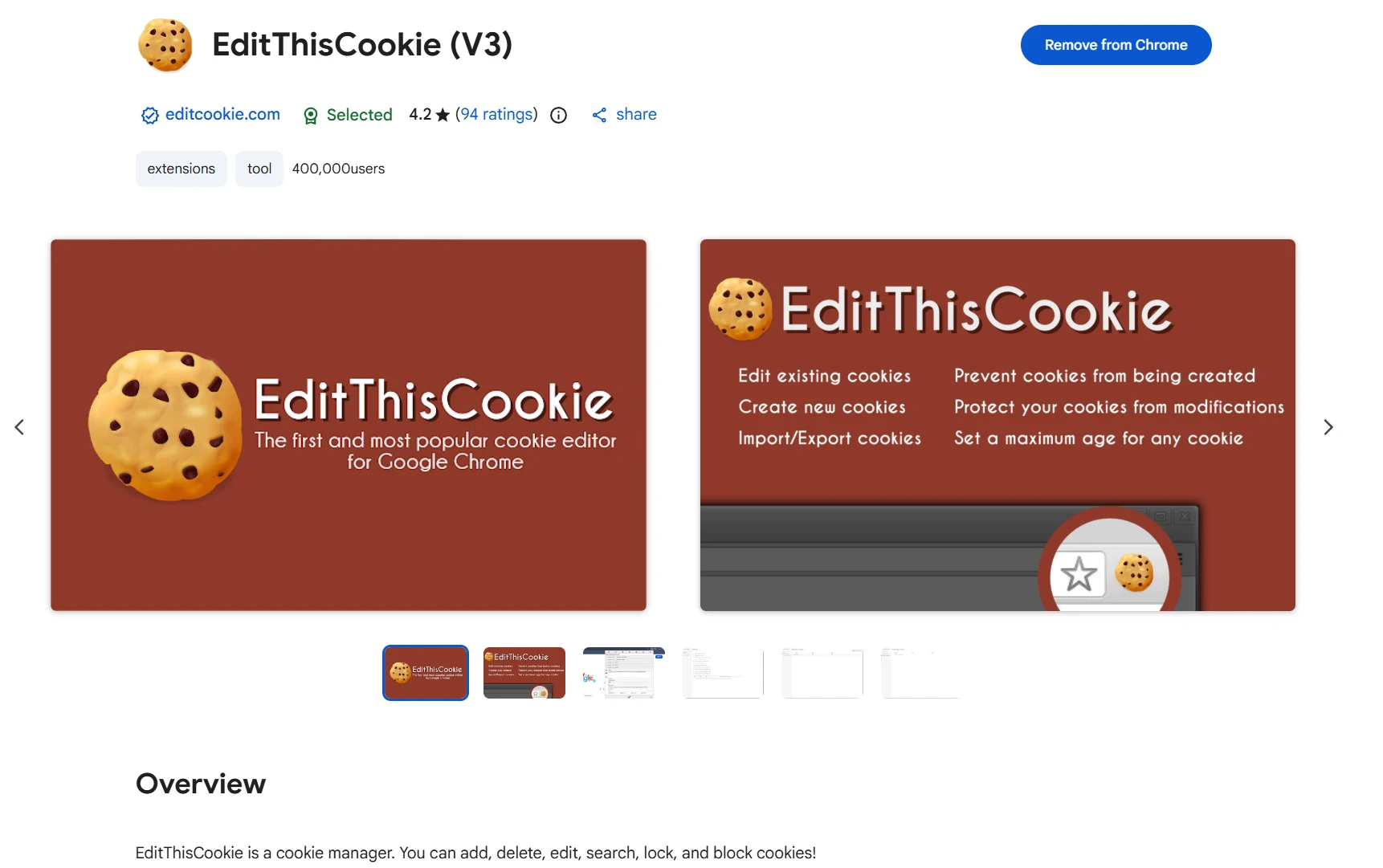
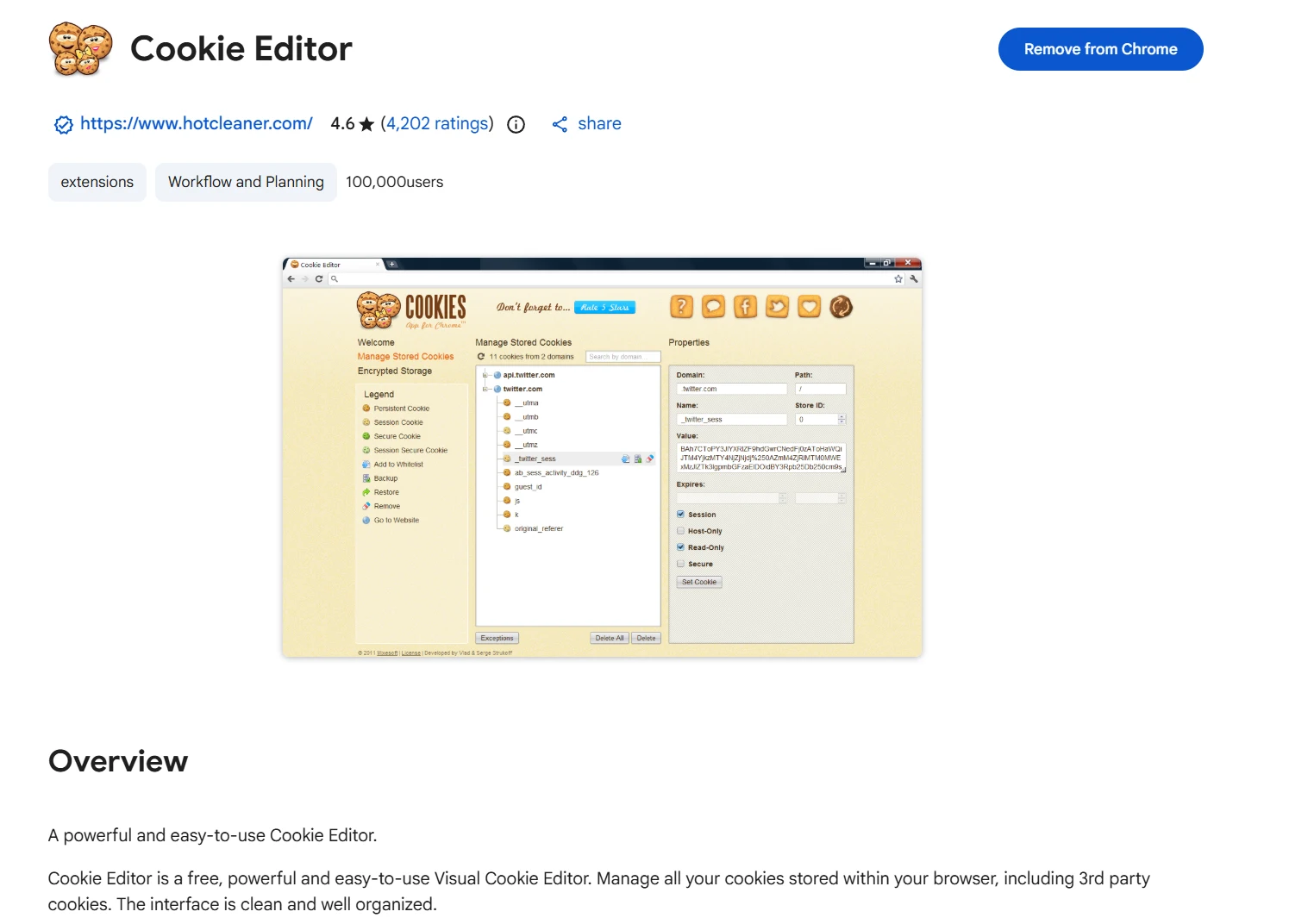
- One-click export with a browser extension: install the EditThisCookie or Cookie Editor extension, open the site whose login state you want to export (stay logged in), click the extension icon → Export → copy the exported JSON data. The field names (name/value/domain/path) are filled in automatically — the most effortless way to get it.
Convert to a supported format, then paste. MasBrowser's Cookie input box (basic info, optional) supports two formats, and the Domain must correspond to the platform you're importing for (e.g. use
.amazon.comfor Amazon logins,.facebook.comfor Facebook logins; the examples use.example.comas a placeholder):- Json: each Cookie is its own object, with multiple objects separated by commas or wrapped in an array, for example:
Field meanings:[ {"name":"session","value":"xxxx","domain":".example.com","path":"/"}, {"name":"token","value":"yyyy","domain":".example.com","path":"/"} ]name= Cookie name,value= Cookie value,domain= the domain it belongs to (must correspond to the target platform),path= the path (usually/). JSON exported by extensions usually has these fields filled in — paste it directly. [[Name=Value,...], {...}]: manual format, each Cookie becomes[Name=Value, Domain=..., Path=...]; the key fields are only Name, Value, and Domain, and the other table columns (size, expiry, priority) aren't needed.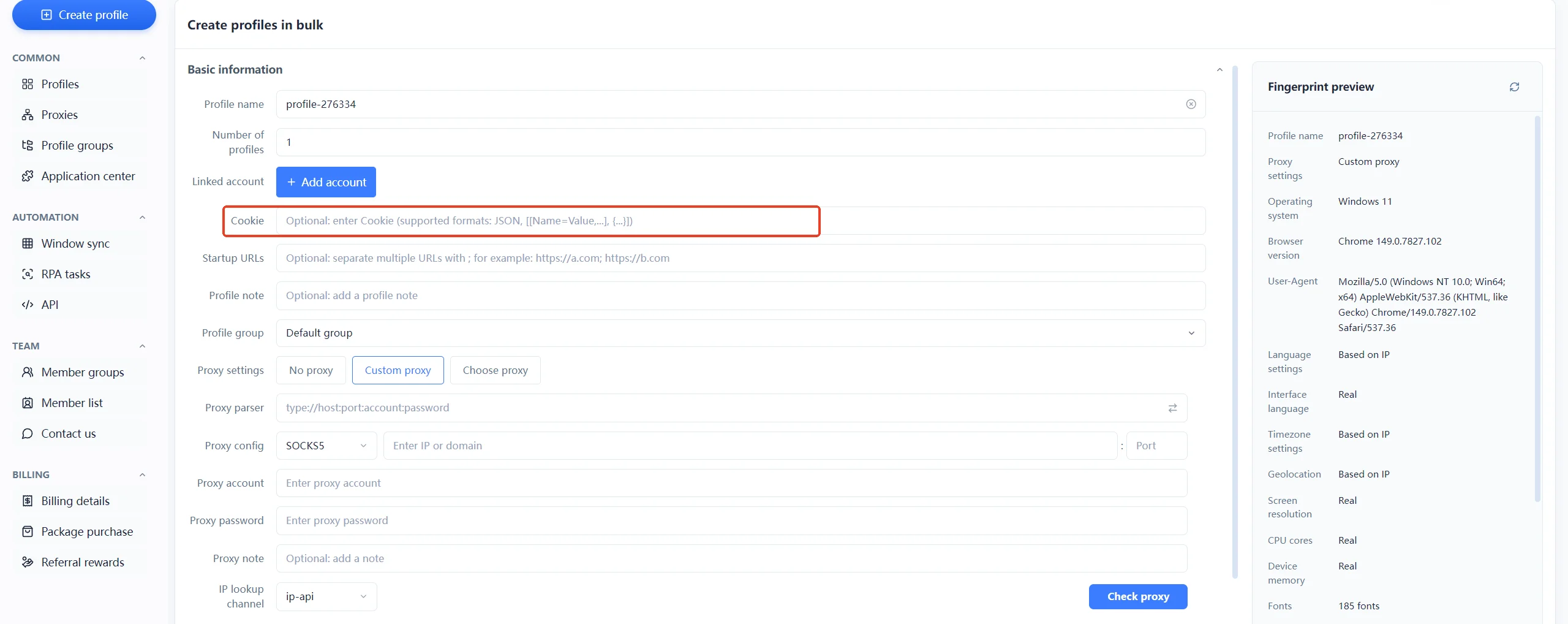
- Json: each Cookie is its own object, with multiple objects separated by commas or wrapped in an array, for example:
Launch and verify. After saving, launch the environment and open the target platform page — confirm it's logged in and the profile info is correct: import succeeded.
The core of the three steps is "get → convert → verify" — and converting is where most mistakes happen: if the JSON exported by an extension carries extra fields (like expirationDate, sameSite), or the manual [[Name=Value,...], {...}] format is wrong, the import may fail; and the domain must be the target platform's domain — a Cookie for a Facebook login can't use the .example.com placeholder. Skipping verification after import is like "thinking it's done when it isn't" — you only find out when it matters.
Cookie Import Pointers: Format, Fingerprint, and IP Consistency
A Cookie isn't "paste and done" — the format must be right, and the environment and network must match. Three pointers when importing (this is essentially the consistency requirement of browser fingerprinting — making the environment still look like "the same device"):
- The format must be right: MasBrowser's Cookie input box supports two formats — Json (
[{...}, {...}]) or[[Name=Value,...], {...}]. If the Cookie copied from developer tools isn't in the right format (e.g. it carries extra fields), the import may fail — arrange it into a supported format first, don't paste it raw. - The fingerprint must match: a Cookie records which browser environment logged in; the importing environment's fingerprint (UA, Canvas, timezone, etc.) should ideally match the Cookie's source environment — if it doesn't, the platform may flag an "abnormal login." After importing, run a fingerprint check to confirm the profile looks right.
- The IP must match: Cookies are tied to the region of the IP you logged in from; the proxy bound to the environment should be in the same region as the Cookie's source — US accounts belong in US-IP environments, not Hong Kong-IP ones (the full logic of combining proxies and fingerprints is broken down in fingerprint browser proxy setup).
In one line: importing a Cookie isn't "copy-paste and done" but "right format + right environment" — get the format, fingerprint, and IP all right, and the login state stays solid.
The 5 Most Common Cookie Management Pitfalls
Importing a Cookie looks simple, but the pitfalls are all in the details:
- Pitfall 1: wrong format fails immediately. The copied Cookie carries extra fields or isn't in a JSON format (plain text, URL-encoded), and pasting it means it can't be parsed — arrange it into the supported Json or [[Name=Value,...], {...}] format before pasting.
- Pitfall 2: domain doesn't match the platform. You paste platform A's Cookie into a platform B environment (e.g. a
.facebook.comCookie pasted into an Amazon environment), or go live with the.example.complaceholder — the platform rejects it outright, and the login state is invalid. The domain must be the real domain of the target platform. - Pitfall 3: pasting a Cookie across environments. You paste environment A's Cookie into environment B (B has a completely different fingerprint) — the platform sees "fingerprint changed but Cookie didn't" and flags an abnormal login. Cookies belong in matching-fingerprint environments.
- Pitfall 4: never clearing expired Cookies. Environments pile up expired Cookies, and the platform may think "this environment is dirty" — clean up stale login states regularly and keep environments tidy.
- Pitfall 5: sharing Cookie strings carelessly. A Cookie is your account's "key" — a leaked Cookie string means a stolen account. Mind confidentiality when copying, pasting, and handing off; don't post them to public cloud drives, group chats, or save screenshots.
The first four pitfalls affect "how stable your login state is"; the fifth is about "how safe your accounts are" — Cookie management is both an efficiency issue and a security issue.
Managing Cookies with MasBrowser: Login State Restore and Environment Isolation
Multi-account Cookie management is essentially "each environment's login state is independent and restorable." Take MasBrowser as an example:
- Built-in Cookie input box in basic info: when creating/editing an environment, paste the Cookie under basic info (optional) — launch the environment and the login state is restored, no re-verification.
- Cookies are isolated per environment by default: each environment stores its Cookies independently, so accounts never interfere with each other — account A's login state never leaks into account B; this is part of environment isolation.

- Login state persists: the login state inside an environment is saved with the environment — relaunching doesn't mean logging in again, so daily operations don't require repeated verification.
- Cookie tied to fingerprint and IP: environment fingerprints and proxy configs are independent; an imported Cookie is used in a matching environment, so the login state looks like "the same device" — the platform can't tell the login environment changed (team collaboration and sharing are covered on the environment management page).
The moat for multi-account operations is getting restorable login state + environment independence + Cookie security right at the same time. The free version includes 2 environment slots, enough to run through the "get → paste → verify" flow before rolling out all your accounts.
FAQ
Why is there still no login state after pasting the Cookie?
Check two things first: the format (must be Json or [[Name=Value,...], {...}]) and whether the Cookie has expired (an expired Cookie won't work no matter where you paste it). Then check environment matching (whether the fingerprint/IP match the Cookie's source). The first two are the most common.
How do I copy a Cookie from the browser?
Use a browser extension (Cookie-Editor, EditThisCookie, etc.) to export JSON in one click — the field names (name/value/domain/path) are filled in automatically, saving manual typing. Note that the Cookies panel in developer tools only allows viewing and clearing, not exporting; after copying, arrange it into a format MasBrowser supports, then paste.
How often do Cookies expire?
It depends on the platform: some days, some weeks, some refresh only when you log in again. There's no one-size-fits-all standard — check the login state of critical accounts regularly and re-login before expiry to refresh, so you're not caught logged-out when you need the account.
Are Cookie strings safe?
A Cookie is your account's "key" — a leaked string is a stolen account. Mind confidentiality when copying, pasting, and handing off; don't post them to public cloud drives, group chats, or save screenshots; clear your clipboard after use.
Do I have to log everything in again after switching computers?
No. Copy each account's Cookie from the original browser, paste it into the corresponding environment's Cookie input box on the new computer (keeping fingerprint/IP consistent), and the login states are restored in batch — far faster than verifying one by one.
Conclusion
Cookie import in a fingerprint browser solves the most annoying "re-login nightmare" in multi-account operations: copy the login state from the browser into the environment, restore it on launch, capture once and use anytime — switching computers, handing off teams, migrating accounts all save time and effort without triggering risk control.
But remember three principles: the format must be right (Json / [[Name=Value,...], {...}]), the environment must match (fingerprint/IP consistent), and the string must stay confidential. A Cookie is both an efficiency tool and a security credential — used right, multi-account operations get a real boost; used wrong, account security flashes red. Start with the first account: run through the "get → paste → verify" flow, then scale up — the free version's 2 environment slots are enough to start. Download MasBrowser and get your first environment set up.